As an Amazon Associate we earn from qualifying purchases.
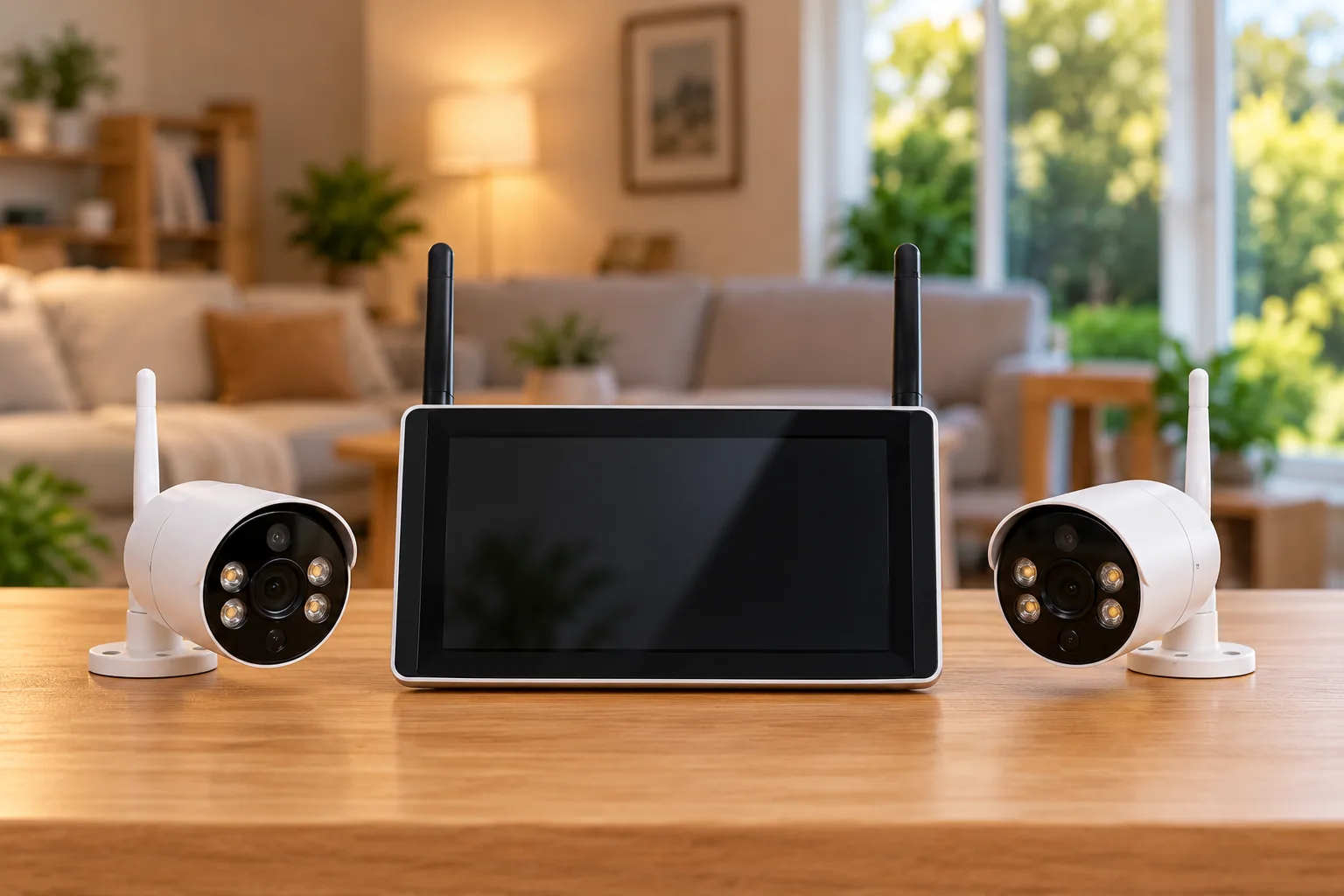
Wireless security cameras with a monitor suit buyers who want a dedicated screen included with the camera system. Choose first between local-only viewing and a kit that can also provide remote phone access. Then check camera power, recording detail, storage and pairing limits. A supplied screen does not automatically mean the cameras are battery-powered or that you can view them away from home.
Quick answer: Defender PhoenixM2 is a documented local-only example; CasaCam VS802 adds remote access through a wired router connection; GuardianCam Pro VS6102/VS6104 offers a larger screen and up to eight active cameras, with important HDMI and storage conditions. These are documentation-based comparisons, not tested performance rankings.
As an Amazon Associate, we earn from qualifying purchases. We may earn a commission when you buy through links on this page.
In this guide:
- Compare supplied-monitor camera kits by viewing needs
- PhoenixM2: consider it for local viewing without phone access
- CasaCam VS802: separate local monitoring from internet access
- GuardianCam Pro: more cameras, with an HDMI tradeoff
- Check storage format before buying extra media
- Screen inches do not tell you recording detail
- Plan the actual radio path and power locations
- Use a supplied-monitor acceptance worksheet
- Common monitor-kit questions
- Choose the viewing arrangement before the bundle
Compare supplied-monitor camera kits by viewing needs
A kit with its own display has a different equipment list from a recorder that merely offers HDMI. In this guide, the screen is part of the camera-kit architecture. If you want to choose a separate recorder and display, wireless camera recorders require their own compatibility and output checks.
| Documented kit family | Supplied display | Active-camera limit | Remote-viewing boundary |
|---|---|---|---|
| Defender PhoenixM2 | 7-inch LCD | Up to 4 paired cameras | No internet or mobile-app connection |
| CasaCam GuardianCam Air VS802 | 7-inch monitor | 4 active cameras | MyCam View requires monitor-to-router Ethernet and internet |
| CasaCam GuardianCam Pro VS6102/VS6104 | 10.1-inch touchscreen, 1280 × 800 | Up to 8 active cameras | MiSmart Camera needs monitor internet over Wi-Fi or Ethernet |
These distinctions come from the PhoenixM2 product page, VS802 manual and GuardianCam Pro manual. A family-level limit does not establish the camera count supplied in every bundle; check the selected package.
PhoenixM2: consider it for local viewing without phone access
The PhoenixM24C product page describes four wireless cameras and a 7-inch LCD monitor. Cameras use a 2.4 GHz link to the monitor and require outlet power. The system does not connect to the internet or a mobile app. That makes it a candidate for someone who wants to watch and review footage locally, with no requirement to check the system from elsewhere. Defender's product documentation establishes those boundaries.
If remote phone viewing is essential, eliminate PhoenixM2 from this comparison early. Adding home Wi-Fi does not create a phone feature the platform lacks. It is better to decide this before comparing screen size or camera housing.
Expansion is also specific. A Phoenix camera can pair to only one monitor at a time, and a monitor supports up to four paired cameras. A second monitor is therefore not a documented way to show the same paired camera simultaneously in two rooms. The Phoenix quick-start guide states the pairing restriction.
Recording goes to an SD card in the monitor. You can select motion-based recording or a schedule. During a scheduled period, the system records continuously and overrides motion-recording settings. For example, if you want daytime continuous footage and motion-triggered recording outside that period, inspect the actual schedule carefully; changing motion sensitivity will not undo the schedule's priority.
The product page supports cards up to 256 GB, but included-card descriptions conflict: its FAQ says 32 GB while the older guide says 16 GB. Confirm the actual bundle's contents instead of counting either size as supplied. Avoid turning the manufacturer's average recording-hour table into a guaranteed retention promise for your own camera count and settings.
CasaCam VS802: separate local monitoring from internet access
GuardianCam Air VS802 supplies a 7-inch monitor and supports four active cameras. Its manual describes single, split/quad, scan and automatic-sequence display behavior. In Scan mode, the screen can be off while monitoring continues, with motion causing the relevant camera to appear. See the VS802 user manual.
That behavior may suit a kitchen or desk where you want the display available without leaving the picture on constantly. It does not establish that the screen or camera is suitable for every unattended-use scenario, and it should not be confused with switching the system off.
For remote viewing, the manual specifies MyCam View and an Ethernet connection from the monitor to the router, with internet available. It distinguishes being connected to the router from having an internet connection. When diagnosing remote viewing, those are separate checkpoints: a connected cable does not itself prove that the remote service can be reached.
During MyCam View setup, change the default access password to a unique password of your own, as the manual requires. Keep the monitor's UID and QR code private. Follow the Android or iOS setup steps in the VS802 manual, pages 15–18 before relying on remote viewing.
The manual supports SDHC cards up to 128 GB. Motion-clip duration options are 15 seconds, 30 seconds or one minute, and File Overwrite replaces the oldest card data when full. Choose the clip setting and overwrite behavior deliberately, then check an actual saved event rather than assuming the defaults match your needs.
Power is device-specific: the monitor uses 5 V, 2 A; the cameras use a 9 V, 600 mA adapter. The monitor's rechargeable 3.7 V, 2000 mAh battery does not make the cameras cordless. The camera is rated IP66, but use the manual's installation requirements for the complete setup rather than extending that rating to every component.
GuardianCam Pro: more cameras, with an HDMI tradeoff
The GuardianCam Pro manual covers VS6102 and VS6104. It lists a 10.1-inch 1280 × 800 touchscreen and up to eight active cameras. These are useful documented differences when you need a larger supplied display or more than four active camera connections. They do not, by themselves, prove better recorded detail or radio performance. See the GuardianCam Pro manual.
Its HDMI behavior needs particular attention. Connecting an external powered display causes the system to reboot and turns off the built-in 10.1-inch screen. Operation then requires a mouse connected to the monitor unit. Disconnecting HDMI causes another reboot and restores the built-in screen.
If your plan is to show the same live picture on the supplied touchscreen and a television simultaneously, that documented behavior does not meet the plan. If you want to use a larger external display instead of the built-in screen, it may be acceptable, provided you account for the mouse and restart. Test this before deciding where the equipment will live.
The manual supports per-camera schedules, audio-recording on/off, timeline distinctions between continuous and event recording, and USB backup. Remote MiSmart Camera access requires the monitor to reach the internet, either over Wi-Fi or Ethernet. Use its member-invitation sharing function when appropriate rather than assuming everyone should share the owner's credentials.
Power supplies must not be interchanged: the monitor uses 5 V, 2 A, and the cameras use 12 V, 1 A. Pair the powered cameras with the monitor before permanent installation, as the manual instructs.
Check storage format before buying extra media
GuardianCam Pro supports an SSD up to 2 TB and a TF/microSD card up to 256 GB. However, the manual uses ambiguous SSD wording, including “M2” and “H.2242.” Those terms do not prove that an arbitrary SATA or NVMe drive will work. Obtain the exact accepted connector, protocol and form factor from CasaCam before buying expansion storage. The official manual is the source of both the capacity and the unresolved terminology.
Keep media purchases attached to the correct system. Phoenix's documented 256 GB ceiling does not raise VS802's documented 128 GB limit. A larger supported capacity also does not establish a particular number of days: recording mode and the footage saved matter.
Before formatting any card or drive already in use, preserve recordings you need. Once storage is installed, verify the system recognizes it, create a recognizable recording and confirm playback and export using the documented method. Check overwrite settings so that reaching capacity has the behavior you intend.
Screen inches do not tell you recording detail
Phoenix illustrates the distinction clearly: its product specifications list VGA 640 × 480 recording and an 800 × 480 display. A 7-inch screen is a physical size, not a promise of HD recorded evidence. Defender's specifications also list monitor output of 30 fps for one feed, 15 fps for two feeds and 7.5 fps for three or four feeds.
Compare the saved recording resolution, display resolution and multi-camera viewing behavior as separate fields. Do not use a display's pixel count as the camera's recording specification. Likewise, do not assume a change in displayed frame rate proves that the saved file uses the same rate.
An effective acceptance check uses a person or object at the distance you care about, with permission where appropriate. Save a clip, review it full-screen and check whether it answers your actual question. Repeat under relevant lighting. This procedure reveals whether the installation is useful to you without relying on an invented universal identification distance.
Plan the actual radio path and power locations
Phoenix advertises up to 450 feet with clear line of sight. Its guide warns that cement, concrete and metal structures can reduce transmission, and nearby operating microwave ovens can disrupt it. Treat the distance as a manufacturer maximum under the stated conditions, not a promised indoor range. See the Phoenix setup guidance.
Wireless camera connectivity should be tested with the monitor in its intended room and each camera at its proposed location. A pairing test performed side by side is useful, but it does not establish that the signal will work through the actual building.
Power needs the same care. Phoenix cameras are IP65, but the product page says the power supplies are not water-resistant and should not be used outdoors. Plan a manufacturer-compliant arrangement for the supply and connections. Do not expose an indoor adapter because the camera housing has a weather rating, and seek qualified help where an appropriate installation needs electrical work.
Use a supplied-monitor acceptance worksheet
| Requirement | Check before permanent mounting |
|---|---|
| Viewing location | Supplied screen is readable and usable where intended |
| Remote access | Required app and internet path work, or local-only is acceptable |
| Access credentials | VS802 default password replaced with a unique password; UID/QR private; Pro users use supported member sharing |
| Pairing | All supplied cameras connect; future additions fit the exact limit |
| Power | Correct adapters and suitable connection locations |
| Saved footage | Recognizable event appears in recording history |
| Schedule | Continuous/event periods behave as intended |
| Storage | Correct media detected; overwrite choice confirmed |
| Export | Needed footage can be preserved and played back |
| Extra display | HDMI behavior meets the actual screen plan |
For a hypothetical four-view household, Phoenix's four-camera limit may be enough if every user only needs the local monitor. The same household should investigate a remote-capable kit if somebody must check footage while away. For six active views, investigate GuardianCam Pro's documented eight-camera architecture, then confirm compatible additions and the chosen bundle. These are selection scenarios, not claims of tested reliability.
Wireless security camera systems can help you compare other coordinated architectures if the supplied-monitor options do not match your required views or storage arrangement.
Common monitor-kit questions
Can I watch PhoenixM2 on my phone?
No. Defender describes PhoenixM2 as a system that does not connect to the internet or a mobile app. Choose a documented remote-capable architecture if phone access is required, rather than assuming that connecting something to your router will add the feature.
Does a battery in the monitor make the cameras cordless?
No. VS802's rechargeable monitor battery is a separate specification from its cameras' adapter power. Identify the power requirement of every camera and display before choosing locations or comparing charging convenience.
Can GuardianCam Pro show the picture on both screens through HDMI?
Its manual says HDMI connection reboots the system and turns off the built-in screen; a mouse is then required for control. That is an external-display replacement mode, not a documented duplicate-screen arrangement. Verify that behavior against your intended setup.
Choose the viewing arrangement before the bundle
Choose wireless security cameras with a monitor by deciding local-only versus remote access first, then checking recording detail, camera count, power and storage. Once those requirements are clear, you can search Amazon for Defender PhoenixM2 kits or search Amazon for CasaCam GuardianCam Pro kits. Compare the actual supplied equipment with your worksheet and verify the footage before permanent mounting.