As an Amazon Associate we earn from qualifying purchases.
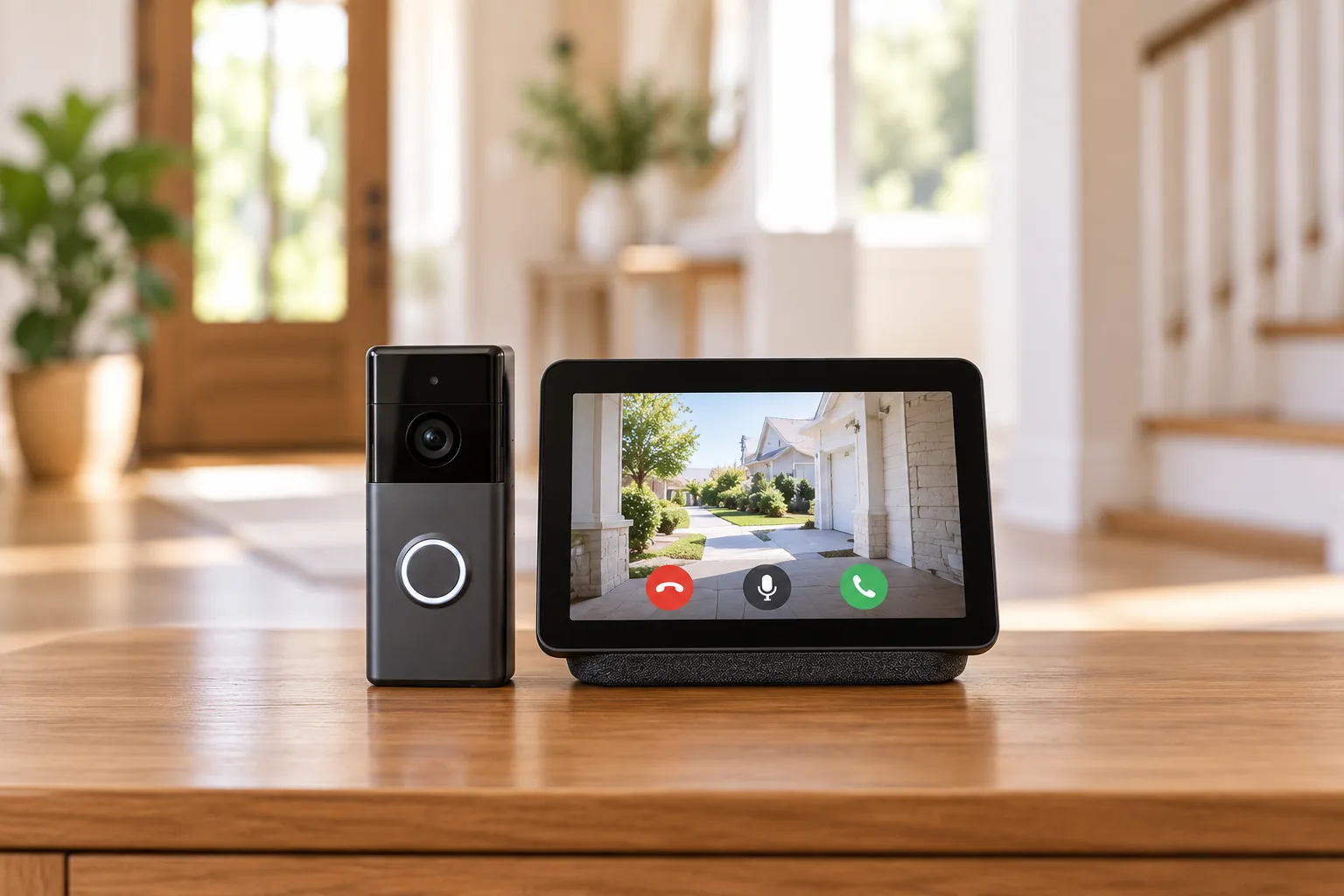
Choose a video doorbell with a monitor by deciding whether you want a matched doorphone kit or a compatible doorbell connected to a smart display. A dedicated kit supplies its own indoor viewing interface. An Echo Show or Google display relies on the supported doorbell, account connection, and feature settings. In either case, verify three functions separately: announcing a button press, showing live video, and letting you talk back.
As an Amazon Associate, we earn from qualifying purchases. We may earn a commission when you buy through links on this page.
Quick decision: Start with the ecosystem you already own if a supported screen can deliver the visitor workflow you need. Consider a matched monitor system when a fixed indoor interface is the priority, but verify the exact US model and installation. A compatibility logo alone does not establish automatic video, two-way answering, continuous display, or saved recordings.
This guide compares manufacturer support instructions and documented architectures. It provides selection and setup checks rather than hands-on latency, readability, or outage results.
On this page
- What “with a monitor” actually means
- Ask these three questions about every pairing
- Ring with Echo Show: verify the exact feature entitlement
- Nest with a Google display: check announcement settings
- A dedicated monitor example, with regional limits
- Verify the full visitor flow before relying on it
- Common buying questions
What “with a monitor” actually means
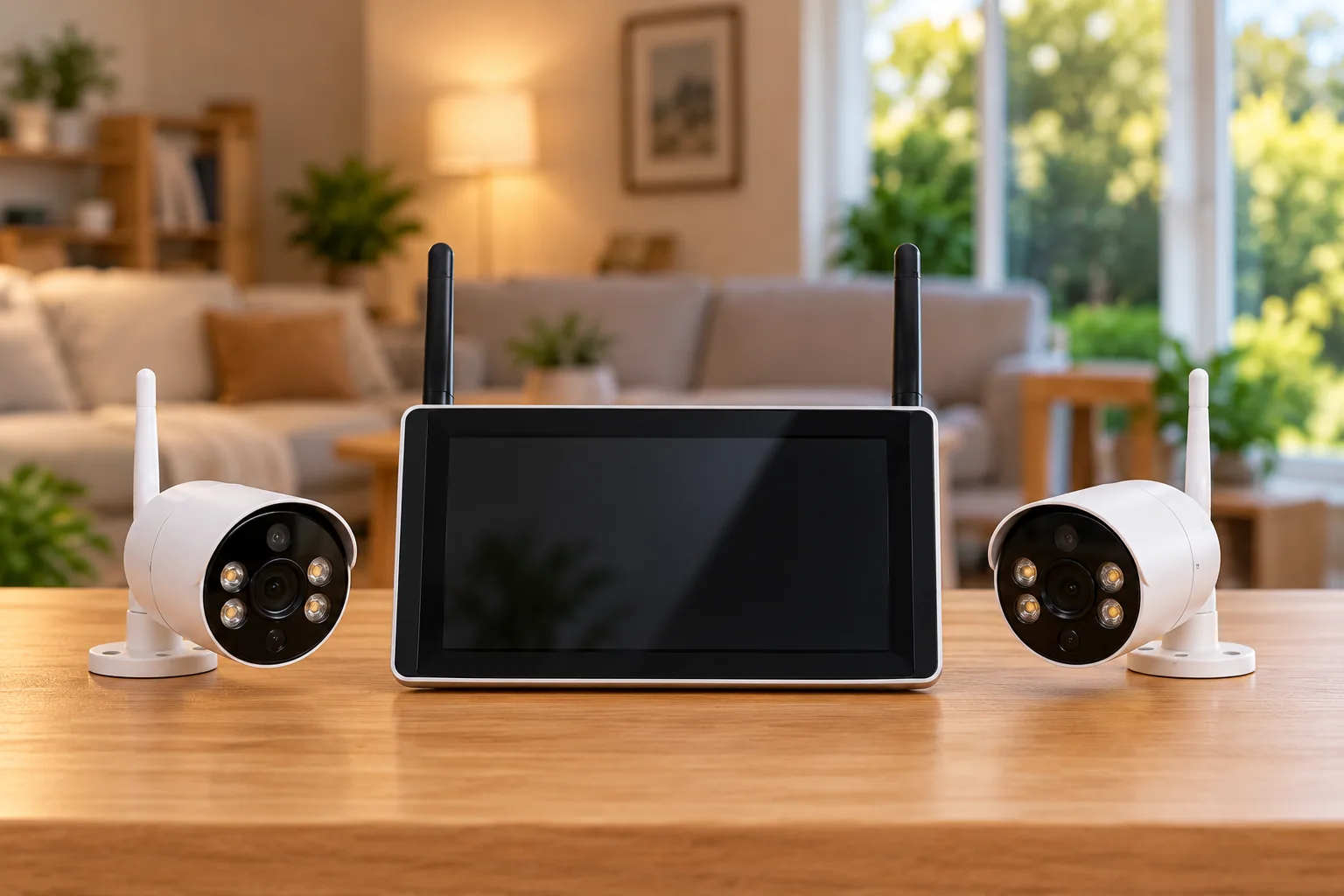
A dedicated doorphone kit pairs an outdoor unit with a designated indoor monitor. You select the units as a system, including their supported link, power arrangements, controls, and storage. A smart-display arrangement instead adds a screen to a supported connected doorbell through an ecosystem such as Alexa or Google Home.
Neither architecture should be judged only by screen size. The useful question is what a person inside must do when someone presses the button. Does the screen announce the visitor? Can the resident bring up video? Can they start a conversation? Who can use those controls without reaching for the main account holder's phone?
| Decision | Matched dedicated monitor kit | Doorbell plus compatible smart display |
|---|---|---|
| Hardware selection | Exact outdoor unit and indoor monitor combination | Doorbell, screen, and supported account integration |
| Visitor workflow | Check the matched system's documented functions | Check announcements, viewing, and talk individually |
| Power planning | Both outdoor and indoor units need their specified supply | Doorbell power and smart-display power are separate |
| Saved recordings | Verify the kit's storage location and card/cloud terms | Verify doorbell recording terms separately from the screen |
| Expansion | Use the manufacturer's supported monitor path | Check support for every additional screen and account |
| Purchase risk | An imported or similar-looking kit may differ by region | A general ecosystem badge may cover only some functions |
The examples below illustrate those distinctions. The dedicated EZVIZ EP7 example comes from Australian documentation and is not a verified US buying recommendation. The Ring, Nest, and Tapo sections describe documented smart-display workflows with their specific limits.
Ask these three questions about every pairing
Will a button press produce an indoor announcement?
A camera feed that you can request manually is not proof of a doorbell-press announcement. Google explicitly warns that visitor announcements may be unavailable on some third-party doorbells that otherwise work with Google. Confirm this particular function with the doorbell manufacturer. Source: Google visitor-announcement help.
This matters when a household member leaves their phone charging elsewhere. If their requirement is hearing a visitor in the kitchen, a manually available camera feed solves only part of the problem. Establish the required alert behavior before buying an extra screen.
Can the screen show the live feed?
Check the exact doorbell model, display model, account integration, and supported command. A manufacturer's statement that a camera works in its own app does not establish viewing on an arbitrary tablet, computer monitor, or smart display.
Tapo provides a useful example: its D225/D235/TD25 FAQ documents live video on Echo Show after enabling the Tapo skill and linking the Tapo account. The same FAQ says PC live viewing is unsupported for those models. The supported Echo Show route cannot be extended into a general claim of desktop compatibility. Source: Tapo doorbell FAQ.
Can someone inside speak to the visitor?
Treat talk as a separate requirement even when video appears. Check how the resident activates the microphone and ends a session. A successful live picture is not a full test of an answering system.
Ring's conventional two-way communication instructions describe answer, talk, and show commands for compatible Echo and Fire TV devices. They also state that the Alexa mobile app does not provide Ring two-way communication; Ring directs mobile users to its own app. Those distinctions matter if a household expects its phone and display to behave identically. Source: Ring two-way communication help.
Ring with Echo Show: verify the exact feature entitlement
Ring documents Live View, visitor announcements, and talk through compatible Amazon devices after connecting the systems. It describes a named-camera show command for video and a separate talk command for answering. Its Smart Home Dashboard instructions cover Echo Show, Echo Hub, and supported Fire TV devices, with the dashboard feature limited to the US and Canada. Picture-in-Picture is documented for select Echo Show and Fire TV models. Source: Ring viewing with Alexa.
There is a material qualification in that page: a footnote attached to its broad introductory feature statement requires a compatible Ring subscription and Alexa+ enabled, restricts availability to mobile devices with select primary languages, and excludes customers in Illinois. The page also discusses screen workflows, so the precise reach of that footnote across those functions is unclear.
Separately, Ring's conventional two-way communication page describes regular Echo/Fire TV voice commands and lists the United States among supported countries without that same Alexa+ footnote. Taken together, these pages do not establish either that every basic Ring/Alexa function is free or that every one requires the same paid entitlement. Sources: Ring viewing guidance, Ring conventional two-way guidance.
Before purchasing for a specific workflow, confirm the exact feature, display, linked accounts, Ring plan, Alexa+ status, language, and location in current settings or with support. Ask a concrete question such as: “Can this account and display announce my doorbell press and start a two-way call where I live?” A general answer about Alexa compatibility is insufficient.
Ring video doorbells deserve a model-specific comparison before you commit to an Echo screen. Once your required integration is confirmed, search Amazon for Echo Show smart displays and match the supported display model rather than assuming every screen offers Picture-in-Picture.
Restrict which indoor screens can access the door
Ring documents per-Alexa-device Live View controls after Ring and Amazon account linking. Its enhanced-control instructions require that linking. Review which household displays need access, especially when a screen sits in a shared room. These controls do not resolve the separate feature-entitlement ambiguity described above. Source: Ring Alexa access controls.
Nest with a Google display: check announcement settings
Google's doorbell comparison identifies Nest Displays, Pixel Tablets, and Google TV Streamer among its ecosystem examples for current listed Nest doorbells. That is useful evidence of supported viewing routes, not a promise that every model has an identical visitor interface. Source: Google doorbell comparison.
Google's visitor-announcement instructions first require the products to be set up and connected in their respective apps. They describe enabling personal results and choosing Always show proactively for a display. Do Not Disturb can temporarily suppress announcements. Source: Google visitor-announcement setup.
For a household that already uses Google displays, check these settings before assuming another screen is necessary. If an expected announcement is absent, investigate the configured workflow and Do Not Disturb status. For a third-party doorbell, confirm announcement support directly with its manufacturer rather than applying Nest's behavior to it.
Google Nest video doorbells should be matched to your power and recording needs as well as your indoor screen. A compatible display does not settle which doorbell generation is appropriate for the entrance.
A dedicated monitor example, with regional limits
EZVIZ's Australian EP7 page documents a seven-inch touch monitor, two-way talk, and local monitor storage using a separately purchased microSD card up to 512 GB. Optional CloudPlay service varies by market. This demonstrates what a matched indoor-screen system can look like; it does not establish US availability, radio approval, plug configuration, or the suitability of an imported unit. Source: EZVIZ EP7 Australian product page.
The documented outdoor unit uses a removable battery and included solar panel. It communicates with the indoor monitor without a cable between those units; the indoor screen still needs its specified power connection. The outdoor-to-monitor Wi-Fi HaLow link is distinct from the monitor's 2.4/5 GHz Wi-Fi connectivity. “Wireless” therefore does not mean every part of the system operates without power wiring or that any Wi-Fi display can replace its monitor.
EZVIZ support also states that its smart video doorphones do not support RTSP or ONVIF, protocols sometimes used to integrate cameras with other viewing or recording equipment. It documents an SD7 screen expansion route while saying arbitrary extra chimes are unsupported. Select additions from the manufacturer's compatibility path. Source: EZVIZ EP7 support.
For a US purchase, request the exact regional model number, matching monitor, installation manual, supply requirements, and expansion list before ordering any dedicated kit. Do not substitute the Australian EP7 feature list for those checks, and do not treat this example as an endorsement to import it.
Place the screen for the person who will answer
A technically supported pairing can still be inconvenient in the chosen room. Before fixing a monitor to a wall, identify where the intended user will stand or sit, where power is available, and whether they can reach the controls comfortably. Consider glare, viewing angle, and whether an announcement is audible from the places it matters.
These are installation questions to verify in your home, not measured accessibility ratings for the products. For a resident who relies on touch controls, try the actual visitor-answering sequence with them. For someone expecting voice operation, have them use the real doorbell name rather than assuming the setup person's command works for everyone.
Also consider who can see the indoor screen. A front-door feed visible across a common room may disclose more than the account owner intends. Review the supported access settings and microphone controls, and make sure household members know how to end a conversation.
Video doorbells for apartments add mounting permission and shared-hallway framing to the screen decision. Those constraints should be settled before choosing a convenient indoor display location.
Verify the full visitor flow before relying on it
Use one household member outside and another at the proposed screen. Record the outcome of each step separately:
- Press the button. Confirm the intended indoor device announces the visitor under normal settings.
- Open video. Use the supported touch or voice action and the actual device name.
- Speak both ways. Confirm the person outside hears the reply and the resident hears the answer.
- End the session. Check that the conversation stops as intended.
- Check ordinary quiet settings. Understand what happens when Do Not Disturb or other relevant controls are enabled.
- Check a second authorized user. Make sure the workflow does not depend on the setup person's phone being present.
- Verify replay separately. If saving video is part of your goal, find a new event using the doorbell's configured recording route.
- Document limits. Keep the exact device names, supported commands, account dependencies, and unresolved feature restrictions together.
For example, assume a home already has a Tapo D225 and an Echo Show, and the resident wants to view callers from the kitchen. The documented Tapo skill and account-linking path makes a live-feed check reasonable. If the requirement also includes automatic announcements and two-way answering, verify those separately; the cited Tapo live-feed instruction does not prove them.
Common buying questions
Will every doorbell press automatically fill the screen?
Do not assume that. Look for explicit support for visitor announcements and the desired screen behavior on the exact pairing. A command that opens Live View establishes manual viewing, not automatic full-screen video. Verify the complete button-press workflow before making it a household requirement.
Does an indoor monitor mean video is stored locally?
No. Viewing and storage are separate functions. A dedicated kit may document storage in its monitor, as the Australian EP7 example does, while a smart display can simply provide access to the doorbell's feed. Confirm the recording destination, required media, and subscription terms independently.
Which architecture should I choose?
For video doorbells with a monitor, start with the smallest supported system that completes your actual visitor workflow. Use a compatible existing screen when its features and account requirements fit. Choose a matched dedicated system when its verified US configuration better serves the household, then check button alerts, video, talk, and replay individually.