As an Amazon Associate we earn from qualifying purchases.
A recorder for wireless cameras must support the camera's actual connection method, model and recording features. A traditional analog DVR will not automatically record a Wi-Fi camera. Start with the camera's compatibility list, then choose a supported network video recorder (NVR) or proprietary hub. For homeowners expanding an existing setup, this check matters more than the words “wireless DVR” on a listing.
Quick answer: identify the camera first, confirm the recorder's hardware and firmware, and check recorded playback rather than live view alone. Budget separately for camera power, recorder storage and any wired router connection.
As an Amazon Associate, we earn from qualifying purchases. We may earn a commission when you buy through links on this page.
This guide compares documented compatibility and support guidance. It covers recorder selection and acceptance checks rather than hands-on reliability rankings.
In this guide:
- Recorder types
- Compatibility worksheet
- RTSP and ONVIF
- Reolink hardware revisions
- Camera power
- Storage calculation
- Recording acceptance checks
What kind of recorder do wireless cameras need?
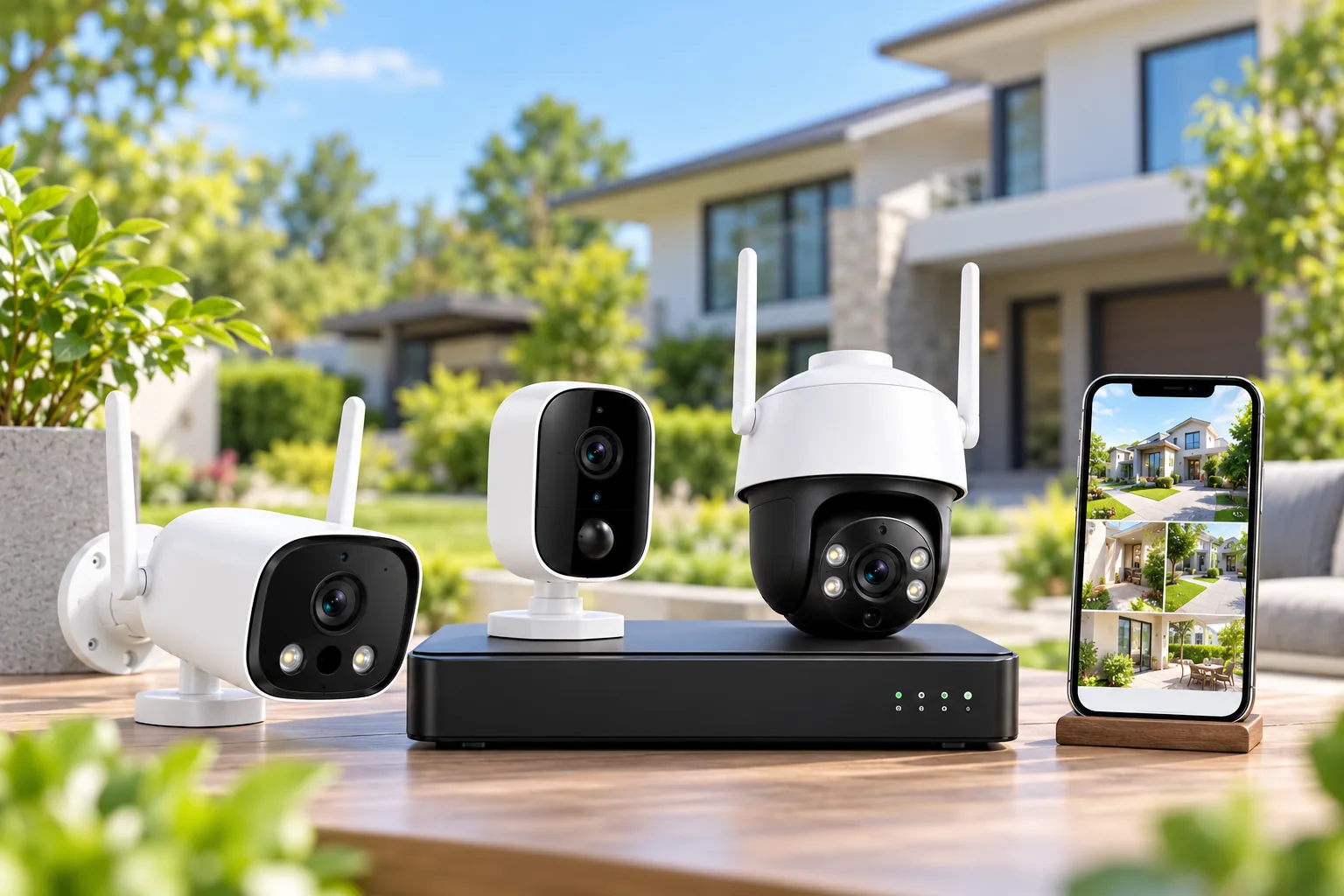
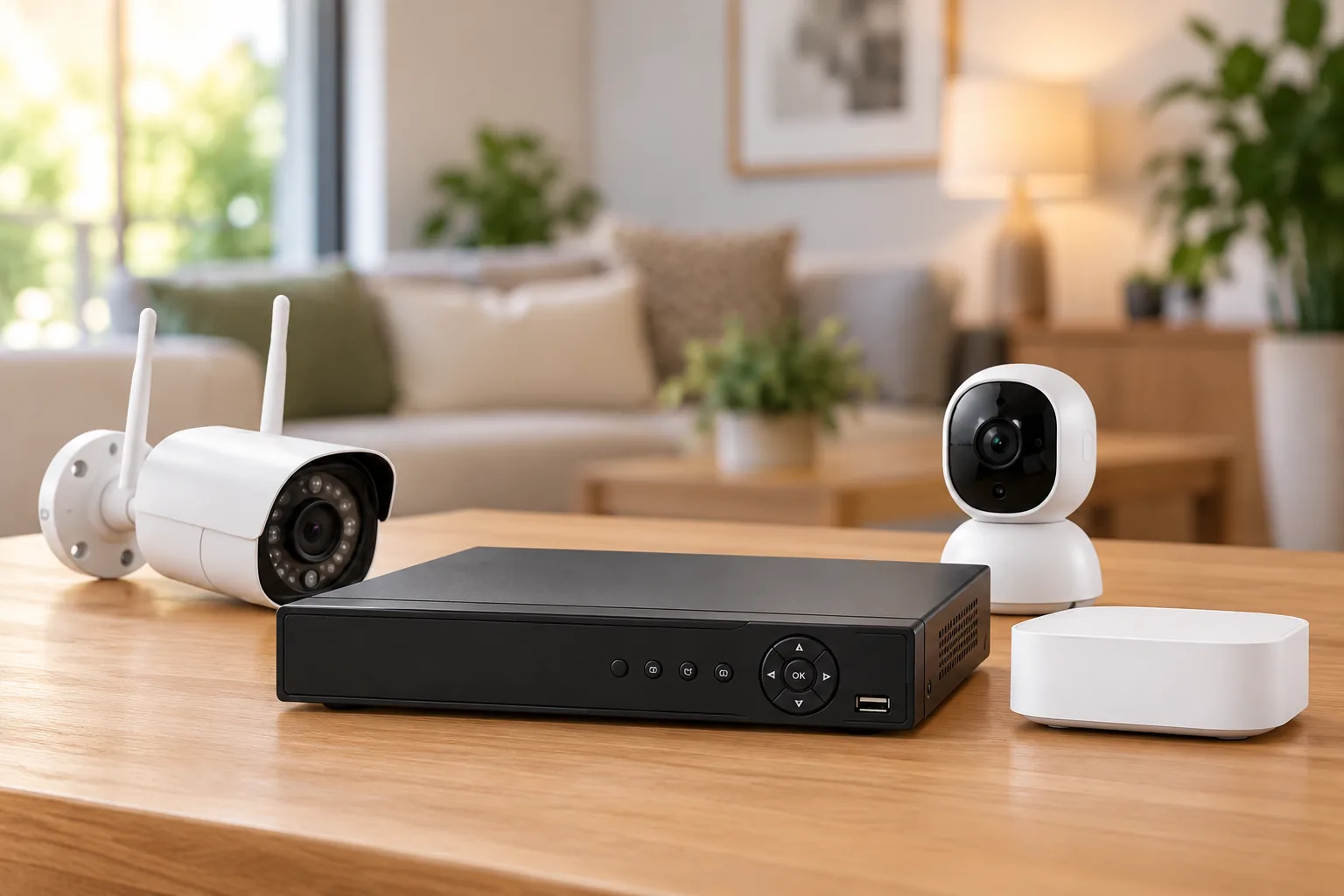
A DVR traditionally records analog cameras connected over coaxial cable. An NVR records IP cameras, which communicate over a network. A proprietary hub supports a manufacturer-defined camera family. Those categories describe different recording paths; none establishes compatibility with every camera that transmits video wirelessly.
Lorex's recorder guide distinguishes analog DVRs from IP NVRs and identifies Fusion as a specific platform that can combine supported wired and Wi-Fi cameras. Fusion is an exception to investigate, rather than evidence that an ordinary DVR accepts any Wi-Fi feed.
| What you already own | Recorder path to investigate | First question |
|---|---|---|
| Analog coax cameras | Compatible DVR | Which analog formats and resolutions does it accept? |
| Plug-in Wi-Fi IP cameras | Supported NVR or documented third-party recording | Does this exact camera expose the required stream? |
| Battery Wi-Fi cameras | Explicitly compatible hub or NVR | Is this camera hardware and firmware listed? |
| Mixed camera brands | Model-specific protocol integration | Which recording, audio and control features survive? |
| Cameras supplied in a closed kit | Recorder from the supported kit family | Are replacement cameras still compatible with this recorder? |
Wireless security camera systems require the same compatibility checks before you choose a complete kit. A recorder purchased separately gives you flexibility only when the cameras offer an integration path you can actually use.
Build a compatibility worksheet before shopping
Record the full camera model, hardware revision and installed firmware. Do the same for the proposed recorder. Save the manufacturer's relevant compatibility table, then write down the features you need: continuous video, event recording, audio, both lenses, remote playback and export.
Brand matching alone is insufficient. Lorex's compatibility chart warns that its products use different technologies, applications and recorder platforms. Two devices with the same logo may belong to different systems.
A useful worksheet has one row per camera, including planned additions:
| Field | What to write down |
|---|---|
| Camera identity | Exact model and hardware revision |
| Connection | Home Wi-Fi, recorder Wi-Fi, Ethernet or proprietary pairing |
| Recording interface | Supported native pairing, RTSP or ONVIF |
| Recorder identity | Model, hardware revision and required firmware |
| Required features | Main video, second lens, audio, event filtering, talk |
| Capacity | Camera limit, stream limits and supported storage |
| Power | Supported input and the equipment providing it |
| Acceptance result | Live view, saved playback and exported file verified |
A blank cell is a purchase question, not an invitation to assume the feature works. Ask the manufacturer about the exact combination, especially when retaining older cameras or buying a replacement recorder without its original camera bundle.
Native pairing versus RTSP and ONVIF
Native pairing connects a camera through the manufacturer's supported ecosystem. RTSP supplies a video stream to compatible software or recorders. ONVIF supplies a standardized interface, but its supported profile and the devices' implementations still determine which capabilities are available.
TP-Link documents an actual third-party route for supported wired Tapo cameras: create a dedicated Camera Account, separate from the regular Tapo login, then configure the recorder using RTSP or ONVIF. The official guide specifies RTSP port 554 and ONVIF port 2020. Those are integration details, not instructions to expose the camera to the public internet. See TP-Link's RTSP/ONVIF instructions.
Several restrictions materially change the purchase decision:
- Tapo ONVIF Profile S does not provide two-way talk. Seeing video in an NVR does not prove that its microphone button can talk through the camera.
- On dual-lens Tapo cameras, the ONVIF connection exposes the wide-angle lens. Separate RTSP addresses may be needed for the other lens.
- Tapo Care, local microSD/Hub storage and NAS/NVR/ONVIF recording cannot all operate together. The guide allows two of these destinations; enabling all three disables the NVR stream.
- Battery models including C425, C460, C660, C645D and D230 generally do not support RTSP. D235, D225 and TD25 have a limited exception requiring hardwired power, the jumper cable and always-on mode.
All of these boundaries come from the same Tapo support guide. They make “ONVIF compatible” a starting point for a feature checklist, rather than a guarantee of the original application's full capabilities.
For example, suppose your priority is a single playback timeline from two compatible plug-in cameras. A third-party recorder may fit even if talk remains in the manufacturer app. If your priority is speaking through every camera from one interface, that same limitation can disqualify the setup before you spend money.
Reolink shows why hardware revisions matter
Reolink's RLN12W is a useful example of a Wi-Fi NVR with several separate requirements. Its introduction describes wireless connections to supported cameras, but the NVR's own internet connection requires an Ethernet cable to the router. Its camera LAN ports carry data and do not supply Power over Ethernet (PoE). See the RLN12W introduction.
The guide describes a 2 TB included hard drive, one drive bay and replacement capacity up to 8 TB. Camera limits depend on camera type: the stated ceiling is up to 12 plug-in cameras, with a separate limit of up to 16 supported battery cameras. Do not add those numbers together as a promised mixed-system capacity; confirm the intended combination.
Resolution support also needs care. The introduction and hardware table differ, so use the exact hardware-specific table for your unit and confirm it before purchasing cameras. For RLN12W/NVS12W hardware NVR_NNT3NA58W_E or NVR_NNT3NA58W_U, that table lists up to 16 MP wired-powered Reolink cameras and selected battery support from NVR firmware v3.5. The supported-camera list still applies. Reolink's hardware guide provides the necessary version boundaries.
That distinction can be substantial for existing owners. The older RLN8-410 with H3MB02 hardware supports up to 5 MP wired-powered cameras and lacks battery-camera support. Its familiar model name does not give it the capabilities of newer hardware bearing a similar name.
Adding a supported battery Wi-Fi camera also changes management: Reolink's guide says standalone App/Client access is no longer available after adding that camera to the NVR. Decide whether centralized management is worth that change before migrating your cameras.
A Home Hub is another possible path, with different limits. Reolink's Home Hub compatibility guide lists an eight-camera total limit for Home Hub and hardware-specific limits for Home Hub Pro. It excludes 4G cameras, cameras without a UID and specified older Lumus/E1 Zoom hardware. Check the exact entry rather than treating every Reolink device as interchangeable.
Separate camera power from video transport
A wireless camera still needs a supported power source. Equally, an Ethernet socket does not necessarily provide power. With the RLN12W, a PoE camera connected to a data-only camera port needs separate suitable power equipment.
Do not apply a universal 12 V adapter rule. Use DC power only when the exact camera supports it, with the specified voltage, current, polarity and connector. Otherwise use compatible active PoE equipment meeting the camera's required standard and total power budget. Reolink identifies Elite Pro Floodlight PoE as PoE-only, with no DC input, and warns against passive PoE injectors. Reolink's camera power guide supplies model-specific requirements.
The practical consequence is three separate lines on your installation sketch: camera power, camera-to-recorder data, and recorder-to-router data. Check all three. Correct power makes a camera operate; it does not establish recorder pairing compatibility.
How much recording storage should you choose?
Start with the footage you need to retain, then calculate the storage. Drive capacity alone cannot promise a number of days because the recorded bitrate and number of streams vary.
Reolink's retention guidance says to count main and substreams, and both lenses' streams when those are recorded. Motion recording can extend retention, but the result depends on activity. Its estimates are planning guidance.
Here is a transparent example using decimal units, offered as arithmetic rather than a measured recorder result. Assume four cameras each record a combined 4 Mb/s across all saved streams. The total is 16 Mb/s; dividing by eight gives 2 MB/s. Over 86,400 seconds, that is about 172.8 GB per day. Fourteen days would require about 2.42 TB before filesystem use, reserve space and variation in bitrate.
| Planning input | Example assumption |
|---|---|
| Cameras recording | 4 |
| Combined saved bitrate per camera | 4 Mb/s |
| Total recorded bitrate | 16 Mb/s |
| Approximate daily video | 172.8 GB |
| Desired history | 14 days |
| Raw calculated video capacity | 2.42 TB, before overhead |
Security camera recording hard drives must also match the recorder's supported drive type and capacity. Extra capacity cannot fix an unsupported camera stream, and a larger drive than the recorder accepts is not a useful upgrade.
If you need predictable continuous history, calculate continuous recording first. Treat event-only retention as a separate scenario rather than assuming an unknown motion percentage. Once installed, compare the oldest accessible footage with your goal and adjust settings or supported storage accordingly.
Test recording and recovery before permanent installation
Bench-check the combination while the equipment is easy to reach. Wireless camera connectivity should be checked at the intended mounting location before you commit to drilling or cable routing.
- Add the exact camera using the supported pairing or protocol method.
- Confirm the intended resolution, lens and audio stream.
- Create a short, recognizable event and find its saved recording.
- Play the recording from the recorder and the remote interface you intend to use.
- Export the clip and play the exported file independently.
- Restart the equipment using its normal procedure and verify recording resumes.
- Check storage status and overwrite behavior against the manual.
This is an acceptance procedure for your installation, not a claim that these combinations were tested for this guide. Keep the recorder in a suitable, less exposed location and protect account credentials. For remote third-party streaming, TP-Link recommends secure encrypted VPN access rather than long-term public exposure in its integration guidance.
Common recorder questions
Can any wireless camera connect to a DVR?
No. A conventional analog DVR expects compatible analog inputs. Some particular platforms, such as supported Lorex Fusion configurations, can add compatible Wi-Fi cameras. Verify the recorder and camera combination; a wireless label or shared brand is insufficient.
Does a Wi-Fi NVR need a router cable?
Some do. Reolink documents that RLN12W connects wirelessly to compatible cameras but requires a wired LAN connection for internet access. Check the recorder's own connection requirements separately from how its cameras communicate.
Is a live picture proof that recording works?
No. A live picture establishes only that the current stream is visible. Save a recognizable event, locate it on the timeline, play it back and export it. Repeat those checks for each required lens and audio feature.
Choose the supported recording path first
Choose a recorder for wireless cameras by matching the exact cameras, hardware revisions, firmware and required features. Then size storage and confirm power and router connections. Once your worksheet is complete, you can search Amazon for Reolink RLN12W recorders and compare the actual listing with those requirements. Verify the supplied hardware, included drive and return terms before ordering.