As an Amazon Associate we earn from qualifying purchases.
Install wireless security cameras in three stages: pair each camera using its exact model's instructions, verify live video and power at the intended position, then confirm that a deliberate test event produces retrievable footage. Drill or permanently mount only after the connection and view are suitable. A successful app notification alone does not establish that the camera saved a recording.
Quick sequence: Identify the model and app → charge or connect power → pair near the router → test the final position → configure storage and schedules → check recorded playback and alerts → recheck after dark.
This guide is for homeowners setting up wireless cameras and verifying that they work as intended. Google Nest and Reolink documentation provide model-specific examples. It covers pairing and commissioning; exposed cable entry, household electrical work and PoE cable termination require their own installation instructions. The steps below are research-based guidance, not a report of a physical installation or performance test.
Contents
- Step 1: Identify the exact setup path
- Step 2: Prepare power, the phone and setup information
- Step 3: Pair near the router using the matching instructions
- Step 4: Test the intended position before mounting
- Step 5: Configure recording and notifications separately
- Step 6: Commission with a deliberate walk-through
- Troubleshoot the failed checkpoint
- Common installation questions
- Finish with proof you can play back
Step 1: Identify the exact setup path
Before charging a battery or downloading an app, record the full camera model and hardware version. Then open its manufacturer setup guide. A series name can contain several models and revisions, so a video for a similarly named device may lead you into the wrong pairing procedure.
Google's setup documentation assigns Nest Cam (battery) to the Google Home app, while older Nest Cam IQ Indoor and IQ Outdoor use the Nest app for initial setup. Google recommends adding a camera before mounting it so that the removable QR-code sticker remains accessible, and keeping the sticker for future setup or troubleshooting. Google's camera setup guide provides the model-to-app mapping.
Reolink similarly says setup varies with the exact model, power source, Ethernet-port availability and sometimes hardware revision. Some plug-in Wi-Fi cameras require an initial Ethernet connection to the router before switching to Wi-Fi. Battery Wi-Fi cameras may use QR-code or Bluetooth setup, but a series appearing in both lists does not mean every model supports both. Reolink's initial setup guide explains how to select the applicable instructions.
| What you identify | Why it changes setup |
|---|---|
| Model and hardware revision | Determines the applicable guide and supported connection methods |
| Battery or plug-in power | Determines preparation and continued power requirements |
| Ethernet port, if present | Some Wi-Fi models need a temporary wired connection |
| Required app and account/home | Determines where the camera is added and controlled |
| Recording destination | Determines card, recorder, hub or subscription prerequisites |
Wireless camera connectivity explains why setup discovery, network video and recording are separate functions.
Step 2: Prepare power, the phone and setup information
For a Nest camera, Google says to charge or plug in the camera and wait for it to turn on before connecting it to Google Home. Use a compatible mobile device, enable Bluetooth and install or update the required app. Keep the Wi-Fi information and camera's setup code available. Google's prerequisites should be checked against the model you are adding.
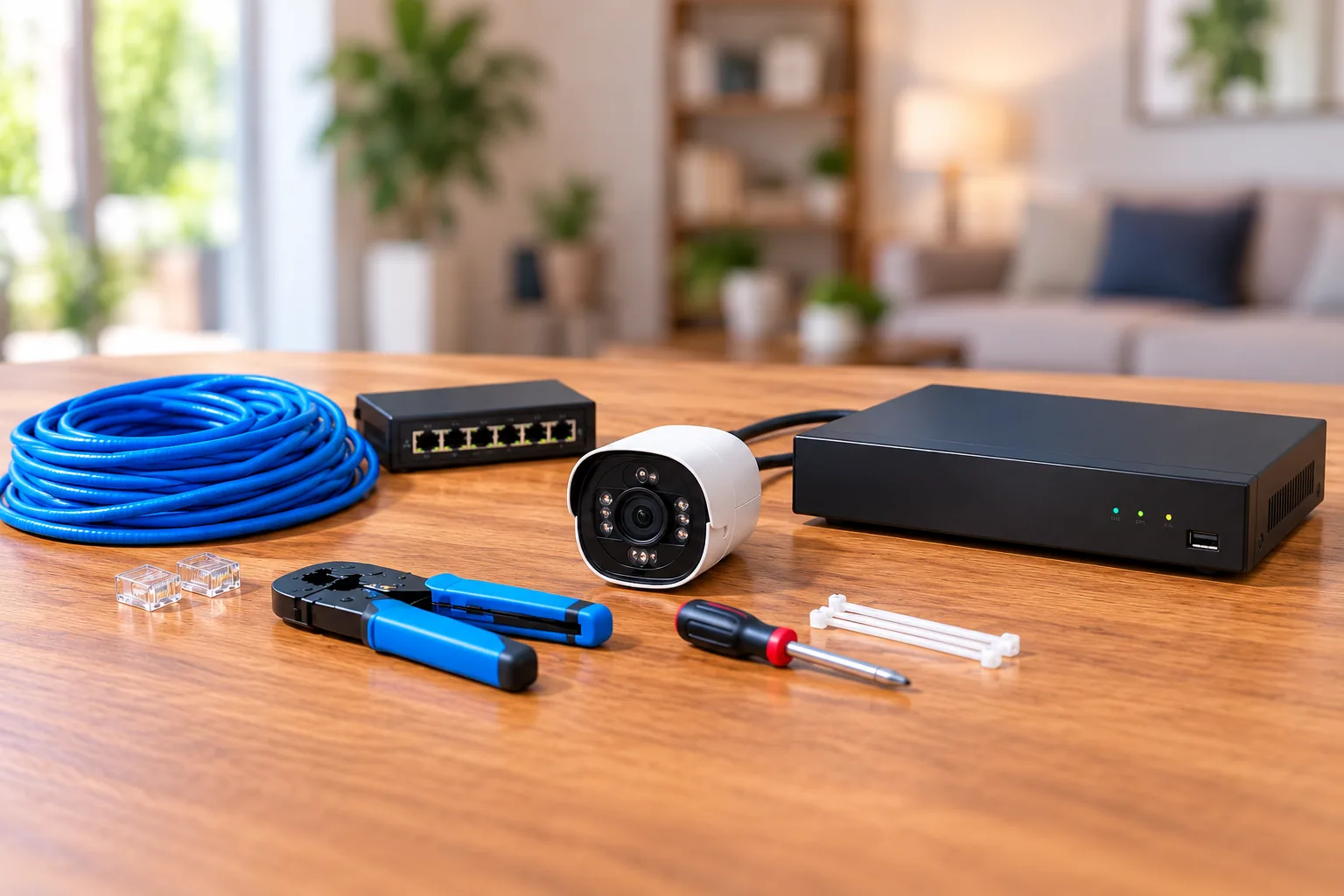
For Reolink, begin with the current app and the power arrangement specified by the exact setup guide. Have a temporary Ethernet cable available if that workflow requires it. If you are uncertain whether a port or cable is needed, settle that before moving the camera to a difficult-to-reach location.
Also prepare the recording destination now. For a card-based arrangement, confirm a compatible card is present and recognized; for a hub or recorder, use its applicable camera-addition instructions. Reolink's recording guide requires available storage, current app/firmware and support for the recording mode you intend to configure. Its recording prerequisites prevent live-view setup from being mistaken for recording setup.
Keep account credentials and camera passwords private. Retain the QR/setup code where you can retrieve it for maintenance, rather than leaving your only copy on an inaccessible mounted camera.
Step 3: Pair near the router using the matching instructions
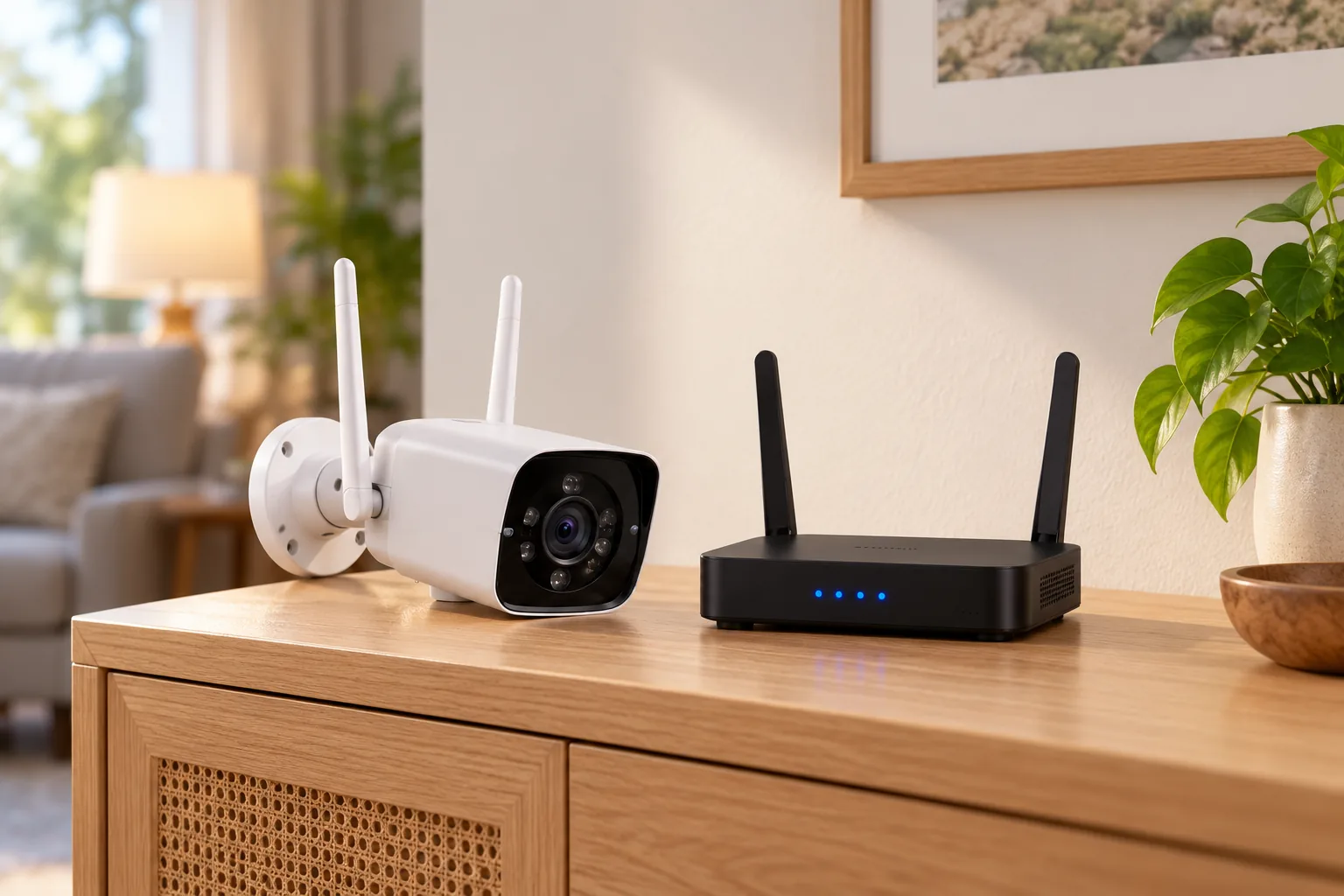
Pairing near the router gives you a manageable starting point before adding distance or difficult access. Follow the exact app prompts, then name each camera for its intended location. Setup button labels can change, so use the manufacturer's current guide when the interface differs.
For Google Home, the documented sequence is to add a device, scan its QR code or use the setup-code alternative, wait for the app connection and complete the in-app steps. Select the appropriate home when needed. Google's setup instructions distinguish the Google Home and Nest procedures.
For Reolink, the app may direct you to send Wi-Fi information by Bluetooth, display a QR code for the camera to scan, or begin with Ethernet. Do not switch methods just because a different model's tutorial looks easier. Use the workflow presented for the actual device. Reolink's setup selector is the starting point.
A specific Reolink no-LAN QR guide lists legacy E1 and Lumus models as 2.4GHz-only, with E1 Pro and E1 Zoom supporting 2.4/5GHz. Newer model descriptions can differ, so do not turn that list into an all-E1 rule. Follow the band requirements for your hardware. In that QR workflow, the camera connects to the router before you create its camera password and device name. The scoped no-LAN guide supplies the sequence.
First checkpoint: Open live video while the camera is still easy to reach. If pairing fails here, resolve the setup error before mounting or changing the final location.
Step 4: Test the intended position before mounting
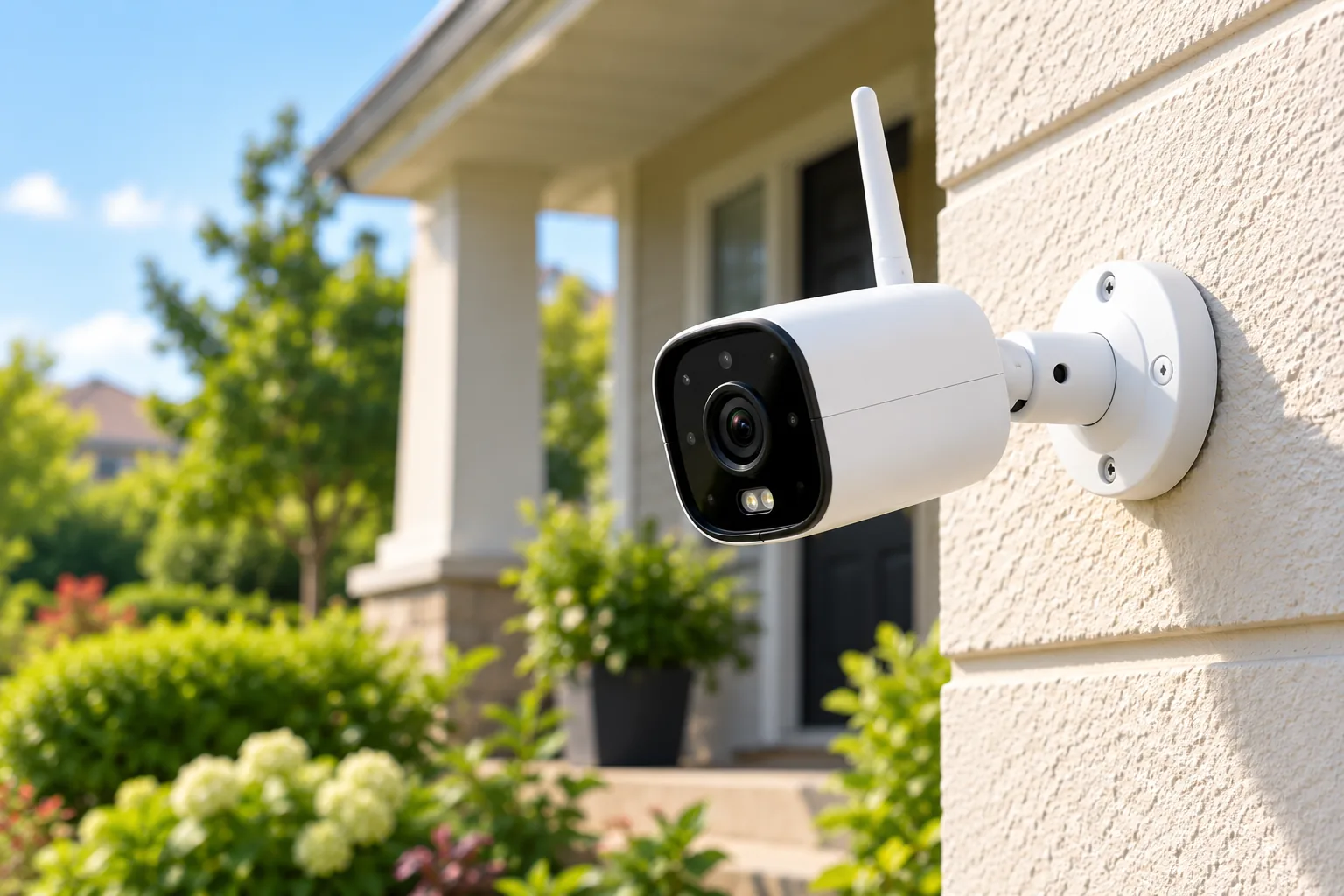
Place or safely hold the camera at the planned position and inspect the live view in the app. Confirm the view includes the entrance, path or other area that matters. Check for a blocked lens, an obstructed microphone/speaker if used, or lighting directed into the camera.
Google recommends checking live and recorded video and adjusting the installation to meet expectations. Its placement guidance also warns that backlighting and nearby surfaces reflecting infrared light can interfere with the view. Google's placement guide supports reviewing the actual picture rather than relying on the camera's apparent direction.
Keep the model's power requirements in this check. A Nest Cam (battery) may use battery power or appropriate accessories; Google identifies the weatherproof cable for continuous outdoor power. Its mounting guide ties 24/7 video history to continuous power and the stated Google Home Premium Advanced subscription. Battery operation alone therefore does not establish that history mode. Google's Nest Cam mounting guide describes the accessory and recording conditions.
For an illustrative check, suppose a camera pairs on the kitchen counter but lags when placed at the rear entrance. Move it back nearer the router and compare live viewing, then check its power or battery condition. This is a diagnostic comparison to perform yourself, not a measured result or a claim that all lag has one cause.
Use an outdoor camera installation guide for weather-exposed mounting, protected power routes and cable-entry planning.
Step 5: Configure recording and notifications separately
Decide what you want to save: selected motion events, continuous footage where supported, or a schedule combining the two. Then configure the storage destination and recording controls. Only after that should notification preferences be treated as evidence of a complete setup.
In Reolink's documented app workflow, open the applicable camera's Camera Recording settings and enable recording. For supported smart-detection models, select the available detection types, choose recording periods and save. Motion and continuous recording schedules are separate settings; continuous recording is model-dependent, including support on only some battery cameras. Cameras added to an NVR and battery models may require their own linked instructions. Reolink's recording schedule guide explains these boundaries.
Match the recording schedule to the hours you actually need. An overnight-only schedule cannot establish daytime recording. A notification selection may also differ from the event types saved to storage, so check the recording controls rather than assuming an alert category configures both.
Use security camera recording options to choose the schedule and storage arrangement before tuning alerts.
Second checkpoint: Create a known event during an enabled recording period, then open the saved timeline or clip and play it. Confirm that it is the expected camera, time and area. Watching the live feed during the event is not the same check.
Step 6: Commission with a deliberate walk-through
Use a short, repeatable check before considering the installation complete. This is a practical verification method you can perform, rather than a manufacturer performance guarantee.
- Note the camera name, intended recording mode and test time.
- Walk through the specific route you want covered, such as approaching the side door.
- Open live view and check that the relevant area is visible.
- Return to recorded playback and find that event.
- Confirm that the saved footage shows the activity you need, rather than merely proving a file exists.
- Check that the intended notification arrives when enabled.
- Repeat the viewing and recording check after dark with the normal lights in use.
Record any mismatch and change one relevant setting or position at a time. If the camera sees the route but no clip exists, investigate recording and storage. If a clip exists but a notification is missing, investigate notification settings and network access. If the subject is obscured or backlit, adjust the view and recheck footage.
Frame the camera around your own coverage requirement. Google advises checking local requirements and respecting neighbors and guests, including when recording audio or using familiar-face features. Its privacy guidance recommends adjusting the field of view and being mindful of private areas. Keep those decisions part of placement rather than an afterthought.
A security camera placement guide can help refine the view when the test reveals a blind spot or an unnecessary neighboring area.
Troubleshoot the failed checkpoint
| Symptom | Check next | Successful recheck |
|---|---|---|
| Camera will not pair | Correct app, hardware-specific workflow, power and Wi-Fi details | Setup completes and live video opens nearby |
| Wi-Fi network is not listed | Supported band, signal and hidden-network name | Camera joins the intended network |
| Video lags at the intended position | Both wireless path and camera power | Live view works at that position |
| Alert arrives but no recording plays | Available storage, recording enabled, event types and schedule | A deliberate event produces a playable clip |
| Playback works but no alert arrives | Notification settings and required network path | The selected alert arrives for a new test event |
| Night image is obscured or glary | Light direction, nearby reflecting surfaces and framing | Recorded nighttime view covers the intended area |
For Nest connection problems, Google suggests retrying, moving nearer the router, reducing interference and manually entering a hidden network's SSID when needed. It also identifies weak Wi-Fi or insufficient power as possible reasons for video lag. Google's troubleshooting section is a reason to diagnose both paths, rather than buying network equipment immediately.
Do not repeatedly reset a camera without identifying the failed step. Preserve the model, hardware revision, app version and exact error for support. Escalate persistent pairing or recording failures through the model's manufacturer guide. Stop work involving uncertain wiring, drilling near concealed services or unsafe access and get suitable professional help.
Common installation questions
Should I mount the camera before setting it up?
Pair and check it first. Google explicitly recommends adding a Nest camera before mounting so its QR-code sticker remains accessible, and keeping that sticker. A nearby live-view check also gives you a starting point for diagnosing problems that appear only at the final location.
Does wireless setup always avoid Ethernet?
No. Some Reolink plug-in Wi-Fi cameras require initial Ethernet connection before switching to Wi-Fi. Others use QR-code or Bluetooth workflows, depending on the model and hardware. Check the exact manufacturer's instructions rather than assuming every wireless camera follows the same pairing sequence.
Is a push alert enough to prove recording works?
No. Verify a saved clip or timeline segment for a known test event. Storage availability, recording enabled, supported event types and schedules all matter. Notifications and recording are separate checks; complete both before depending on the installation for the footage you expect to retrieve later.
Finish with proof you can play back
A completed wireless camera installation has passed three checks: the right device pairs, its final-position view and power work, and a known event can be retrieved from the intended storage. Save the setup information, keep the recording schedule clear and repeat the viewing/playback check after dark. Those observations provide a practical basis for adjusting the installation or asking support a specific question.