As an Amazon Associate we earn from qualifying purchases.
To install outdoor security cameras, first confirm the view, power route, network connection, and exact mounting instructions. Set up the camera in its app before drilling, test it near the proposed location, then mount it with the specified hardware and protect every exposed connection. Finish by checking a saved recording and the view after dark. A live picture alone does not establish that the installation is complete.
This guide is for US homeowners planning weather-exposed mounting and low-voltage accessory routing. It uses manufacturer installation guidance rather than a hands-on installation test. Mains wiring, uncertain hidden services, and building-envelope repairs require the appropriate qualified help; the steps here do not describe electrical termination work.
Quick checklist: Pair first; inspect the wall and route; confirm model-specific orientation and drop protection; assemble connector seals in the correct order; verify events, playback, and night glare; retain access for charging and maintenance.
Contents
- Step 1: Decide what the installed view must show
- Step 2: Pair the camera and inspect the complete kit
- Step 3: Confirm the route and stop conditions
- Step 4: Mount according to the exact model
- Step 5: Protect connectors as well as the camera body
- Step 6: Commission recording and night coverage
- Installation questions
- Finish with usable footage and service access
Step 1: Decide what the installed view must show
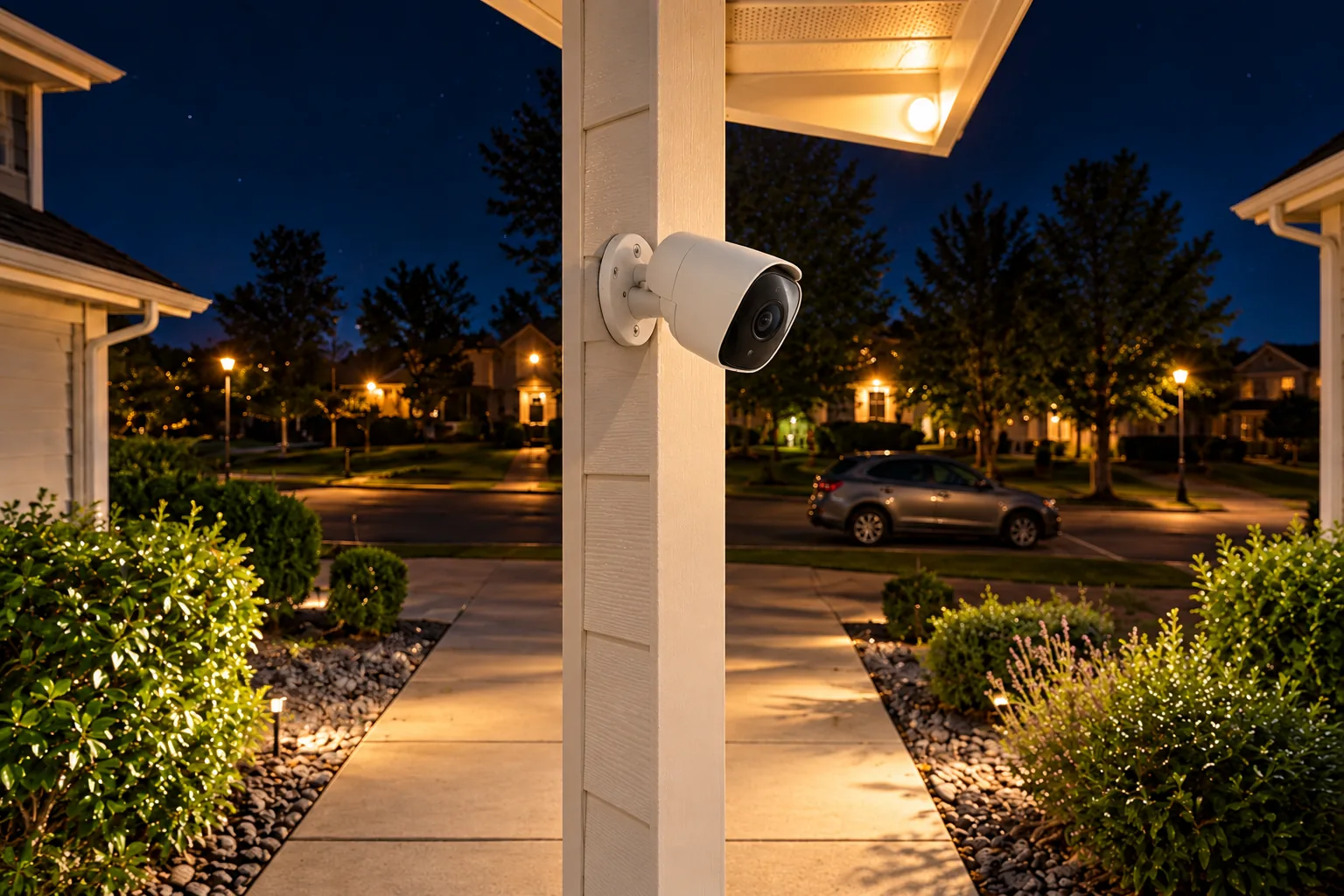
Write down the area and action you need to capture: a person approaching the side door, a delivery at the porch, or movement across the driveway. Check the camera's live and recorded view from a safe temporary position. Google specifically recommends checking both and changing the installation if the picture does not meet expectations. An attractive mounting spot is useful only if the resulting footage answers the question. Google camera-placement guidance.
Outdoor camera placement comes before mounting hardware. Check for a wall edge, roofline, plant, or other object blocking the target area. Review where people appear in the frame rather than judging the scene only when it is empty. Leave enough room to adjust the view without forcing the camera into an unsupported orientation.
Keep privacy in the framing decision. Google recommends avoiding neighbors' private property and public pathways where possible, and checking applicable requirements for video, audio, and features such as familiar-face detection. Adjust the view toward the area you intend to monitor. These are planning considerations, not a statement that any particular installation is legally compliant. Google's privacy guidance.
A hypothetical side-door installation might initially show a wide yard but miss the face of someone standing at the door. Before drilling, change the temporary position or angle and repeat the recorded check. If the mounting spot cannot provide the required view while preserving safe access and privacy, choose another spot rather than hoping software settings will correct the geometry.
Step 2: Pair the camera and inspect the complete kit
For Nest Cam (battery), Google says to add the camera to Google Home before mounting. Its setup guide uses the relevant app to connect the camera to Wi-Fi and guide installation. Follow the exact product's setup flow while the camera is accessible, then test it again at the intended mount. Nest Cam battery mounting instructions, Nest camera setup.
Before leaving the work area, collect the following:
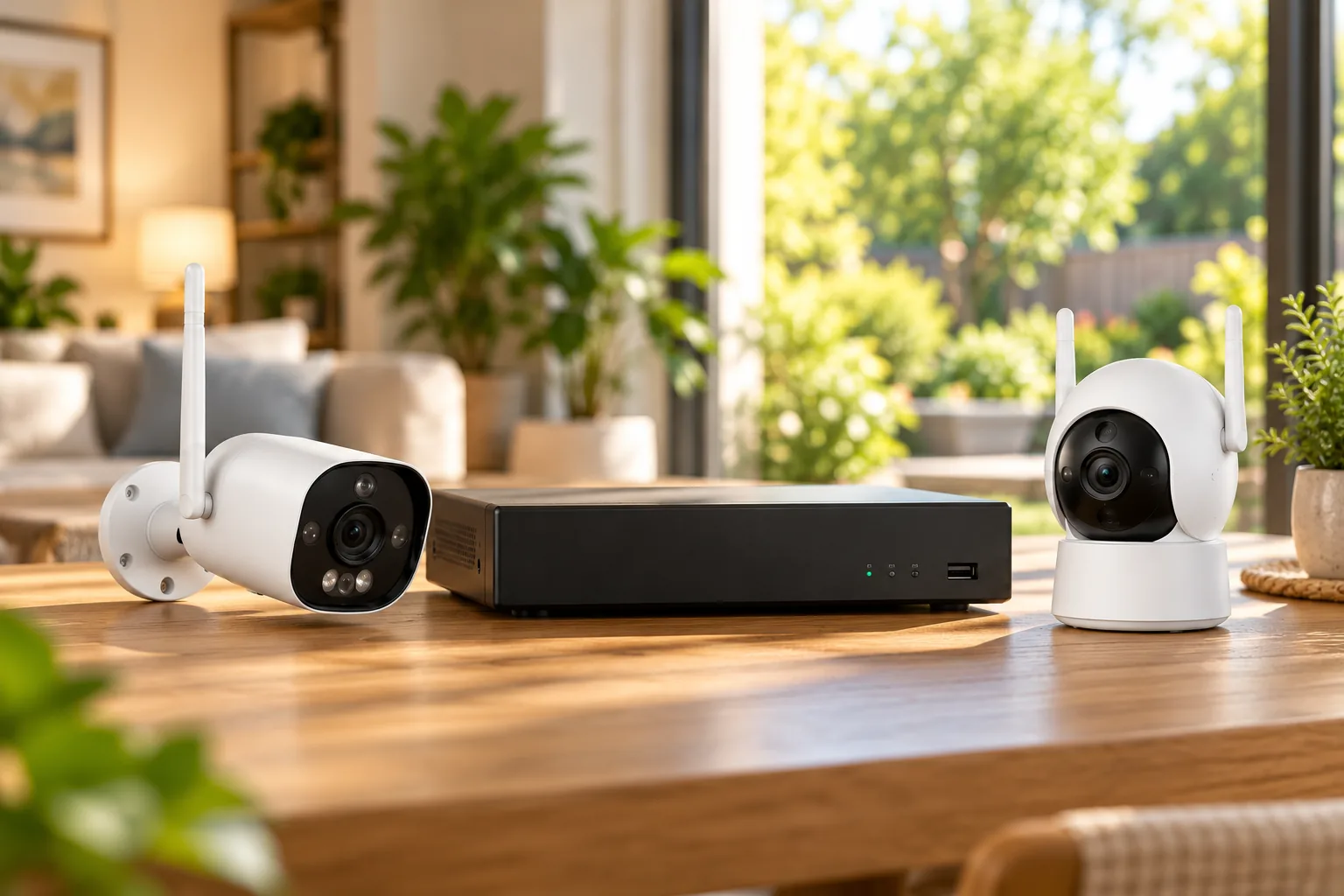
| Item | What to verify before drilling |
|---|---|
| Camera and mount | Exact model, supported surface, installation orientation |
| Fasteners | Manufacturer instructions and suitability for the actual wall |
| Power accessories | Intended environment, compatible connections, usable route |
| Network accessories | Required cable or a working wireless connection at the location |
| Connector protection | Correct cap or weatherproof assembly for each exposed connection |
| Maintenance access | Camera removal, charging, adjustment, and connector access |
| Recording setup | Available storage and a recording mode the model supports |
Read the installation instructions for that model rather than borrowing drill sizes, screws, or mounting height from another camera. A box may contain several installation options, but not every method applies to every member of the product family. Security camera mounts must fit the device and surface, and they need to preserve the intended view and orientation.
For example, Reolink's Duo instructions describe wall and ceiling installation with view adjustment and a final tightening step. The loop-strap method in that guide is specifically for battery-powered Duo models. It should not be transferred to a different Duo version simply because the product names are similar. Reolink Duo installation guide.
Step 3: Confirm the route and stop conditions
Trace where power or Ethernet will travel before making holes. Identify the camera end, any wall penetration, and the outlet or network endpoint. Confirm that each accessory is intended for its environment. Google warns that cameras, cables, and adapters should be used only in their intended locations; protecting the camera body does not make an indoor accessory suitable outdoors. Google placement and environment guidance.
For Nest Cam (battery), Google offers a weatherproof cable in 16 ft (5 m) and 33 ft (10 m) lengths, connecting to an appropriate weatherproof outlet inside or outside. Check the actual route rather than measuring only a straight line from camera to outlet. Keep enough practical access to connect and service the device according to its instructions. Nest weatherproof-cable installation.
Stop before drilling if any of these remain unresolved:
- You cannot determine whether the hole conflicts with electrical wiring or plumbing.
- The proposed power accessory or exposed connection lacks the required environmental protection.
- The mounting surface or fasteners are uncertain.
- The route would require mains work or a wall repair beyond your knowledge.
- You cannot reach the mounting position safely or later service the camera.
Google's Nest mounting instructions explicitly require following local housing safety rules and avoiding wiring and plumbing; they recommend an electrician or plumber when uncertain. Apply that caution before committing to a route. Do not select a universal sealant or penetration method from a generic camera guide when the wall construction and product instructions require a specific solution. Google's pre-drilling precautions.
Wireless camera installation still needs this power and maintenance assessment. “Wireless” describes a connection or product design, not permission to ignore a required power cable. For a battery camera, plan safe removal and charging access rather than installing it where routine service becomes impractical.
Step 4: Mount according to the exact model
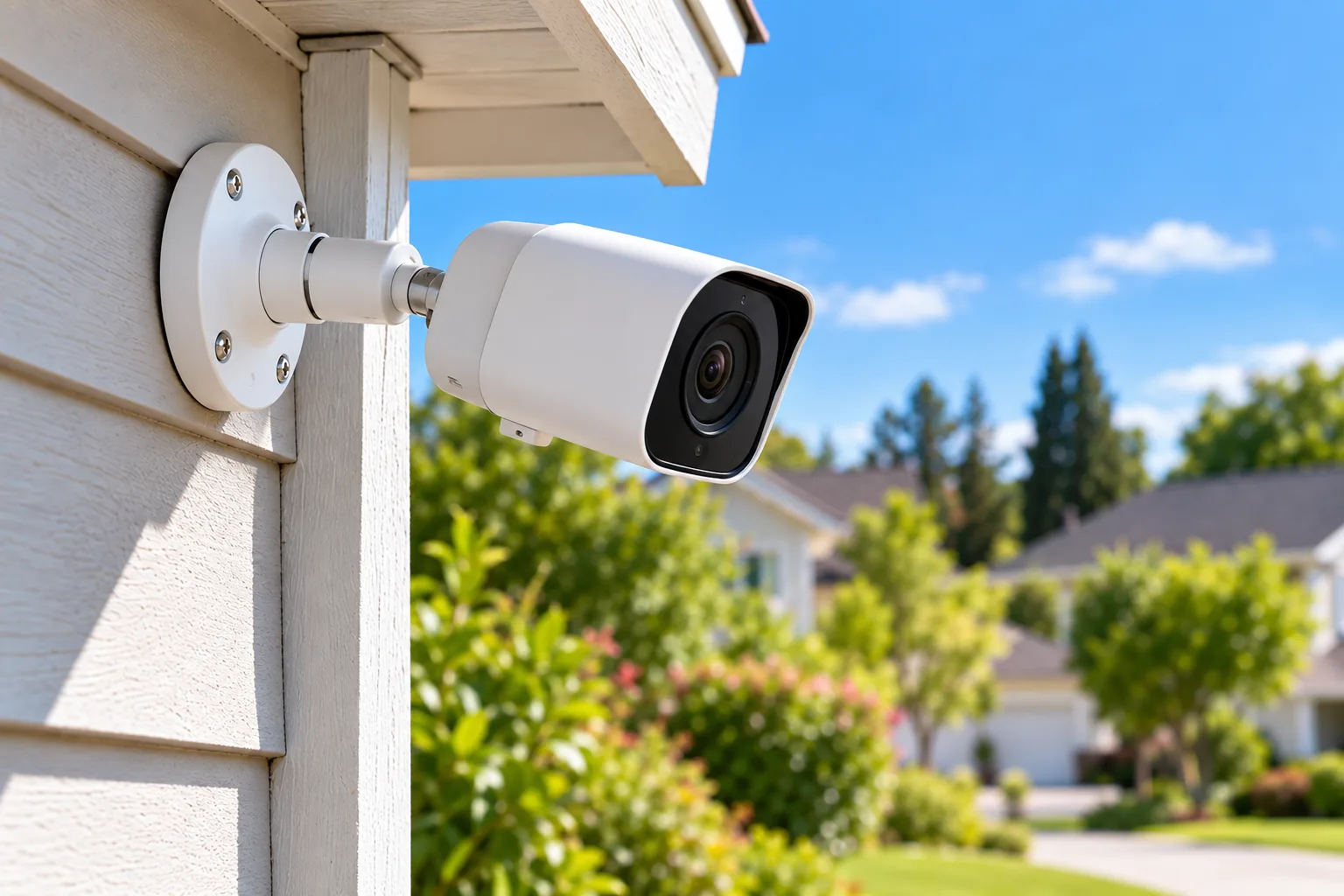
Use the supplied template and mounting instructions where provided, confirm the intended direction, and secure the hardware appropriate to the surface. Position the camera, check the app view, make the permitted adjustment, and complete the manufacturer's tightening steps. Reolink's Duo guide explicitly includes tightening the adjustment screw after framing. Reolink Duo wall and ceiling installation.
Orientation can be part of weather protection. Reolink says inverted models such as the E1 Outdoor series should be installed upside down to maintain waterproofing. A rotated image in an app does not establish that the body can be mounted in any orientation. Consult the exact installation diagram before tightening the mount. Reolink model-specific installation tips.
Nest Cam (battery) has another model-specific requirement. Above 6.5 ft (2 m), Google instructs using the secure loop or the listed Wasserstein anti-theft mount, which also offers drop protection. If using the secure loop, leave its release tab accessible so the camera can be removed for charging. Do not hide that tab behind the mount. This is a Nest requirement, not a universal height rule for all outdoor cameras. Nest secure-loop and safety instructions.
Google also says Nest cameras need air circulation and should not be installed in a small box or enclosure. If you need shade, preserve ventilation and the manufacturer's mounting requirements. An improvised sealed box can introduce a different problem while attempting to protect the camera. Google overheating and outdoor-placement guidance.
Step 5: Protect connectors as well as the camera body
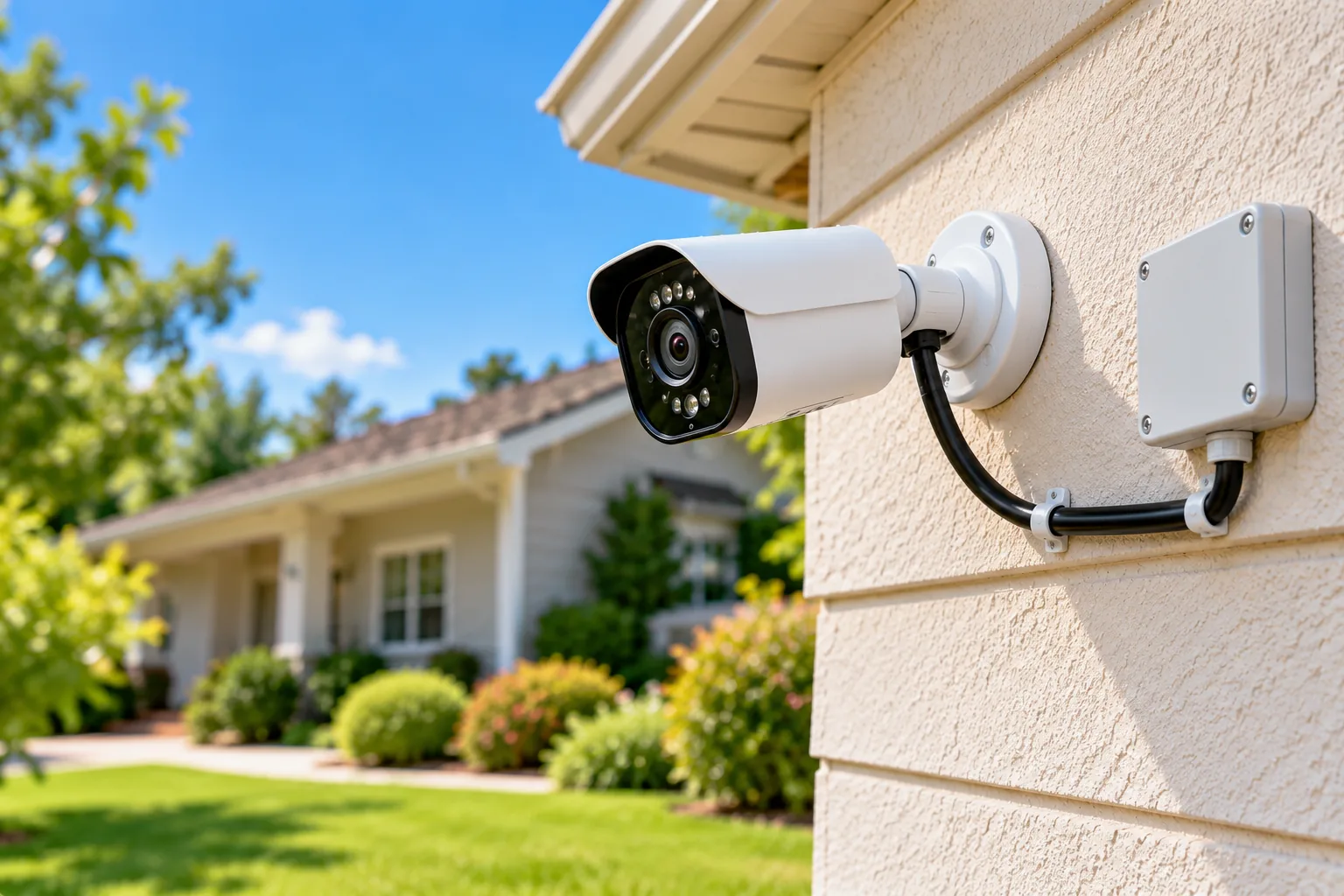
An outdoor-rated camera body does not remove the need to protect its Ethernet connector. Reolink distinguishes an unused RJ45 port from a connected Ethernet cable, and the protection differs. Inspect the actual parts before routing the cable through the final position. Reolink weatherproof-cap guide.
| Connection state in Reolink's guide | Required protection described | Installation detail |
|---|---|---|
| RJ45 port unused | Integrated cap on the camera cable | Press or tighten it over the unused port as instructed |
| Ethernet cable connected | Compatible detachable weatherproof assembly | Put components on the cable before connecting, then tighten the assembly |
| PoE camera package | Guide lists a weatherproof kit as included | Verify the actual model and box contents |
| DC-powered Wi-Fi camera with RJ45 | Guide lists the detachable kit as not included | Obtain the compatible kit if using outdoor Ethernet |
The assembly order matters. Reolink says the detachable components go on the Ethernet cable before it connects to the camera; they are then tightened to form the protective seal. Discovering that requirement after routing and securing the cable can create unnecessary rework. Follow the kit's detailed instructions rather than improvising a wrap around a completed connection. Reolink connector assembly guidance.
PoE camera installation also requires checking the camera's specific power and network arrangement, but this connector step remains necessary outdoors. Finish the route using suitable accessories and preserve the required protection at wall entries and outlets. If the building's weather sealing is uncertain, have that detail checked before considering the installation finished.
Step 6: Commission recording and night coverage
Enable the intended recording mode and confirm its destination has available storage. Reolink's scheduling guide stresses available storage, supported modes, and current device/app software. It separates battery and NVR workflows, so a missing continuous-recording option should not be treated as an installation defect without checking model support. Reolink recording-schedule guidance.
Use this proposed acceptance worksheet after mounting:
| Check | Action | A useful result to retain |
|---|---|---|
| Live view | Open the camera from its normal app | Intended area is visible without a blocked edge |
| Event detection | Have a consenting person use the intended approach | Required event appears under the configured settings |
| Playback | Find and play the saved event or supported timeline | Footage is retrievable from the intended destination |
| Night view | Repeat after dark | Nearby objects and lights do not obscure the important area |
| Physical installation | Inspect mount, connectors, route, and removal access | Hardware follows the exact instructions and can be maintained |
Google notes that nearby objects can reflect infrared light and reduce useful night coverage. It also recommends checking for glare from daylight or a floodlight. Repeat the view check after dark rather than relying on the afternoon preview. If glare obscures the target, adjust the permitted angle or position and check again. Google night-vision and glare guidance.
When live video works but no recording appears, check recording enablement, schedule, detection selection, storage, and model support. When the target is outside the picture, correct framing. When the camera is unreachable at the final position, check the power and network path. Change one thing at a time and repeat the same acceptance action so the result is meaningful.
Installation questions
Is there one correct height for outdoor cameras?
No universal height follows from these instructions. Use the exact camera's detection and mounting guidance, then inspect the view. Nest Cam (battery) has a specific anti-drop requirement above 6.5 ft (2 m); that should not be replaced by a generic rule copied from another guide.
Can an unused Ethernet port stay exposed on a Wi-Fi camera?
Follow the manufacturer's connector guidance even when Wi-Fi carries the video. Reolink describes an integrated cap for its unused RJ45 port. If Ethernet is connected, the compatible detachable assembly serves a different purpose. The body rating alone does not answer the connector question.
What counts as a finished installation?
The camera is securely mounted in its required orientation, accessories and connections have suitable protection, and you can retrieve the intended recording. The view also needs a night check and a practical maintenance route. Keep the manual and record the final mounting position, recording destination, and any unresolved issues.
Finish with usable footage and service access
A reliable installation starts before the first hole and finishes after the first saved nighttime check. Pair and test the camera, confirm the route and hidden-service precautions, follow model-specific mounting requirements, and protect the connections. Then verify the recorded result. If the view, power route, weather sealing, or service access remains unresolved, correct that part before treating the camera as ready for everyday use.