As an Amazon Associate we earn from qualifying purchases.
Installing PoE security cameras starts with a route and power plan, followed by a short-cable test before permanent mounting. PoE, or Power over Ethernet, carries camera power and network data over the same Ethernet connection. Match each camera’s required PoE standard to its port, check the total power budget, connect the intended recorder topology, and verify saved footage in daylight and darkness.
As an Amazon Associate, we earn from qualifying purchases. We may earn a commission when you buy through links on this page.
Installation sequence: Plan → check power → bench-test → run and protect cables → initialize → configure recording → prove playback.
This guide is for homeowners installing a compatible wired camera system. It uses Reolink-specific examples from official instructions checked October 18, 2026; other brands need their own model requirements. It covers Ethernet installation and setup checks, with no claimed hands-on cable tests. New mains wiring, exposed outdoor electrical work and complex building penetrations belong with an appropriate professional.
Contents
- Step 1: Draw the routes and record the hardware
- Step 2: Check both PoE power limits
- Step 3: Select the cable and bench-test one camera
- Step 4: Route cable and protect exterior connections
- Step 5: Choose the recorder connection deliberately
- Step 6: Initialize passwords and add the cameras
- Step 7: Configure storage and prove recording
- Troubleshoot by the failed stage
- Final installation checklist
Step 1: Draw the routes and record the hardware
Sketch the property areas you need to watch, the recorder location and each cable path. Name every camera position and give its cable the same label at both ends. Measure the actual planned route, including bends, changes of floor and the path into the building, rather than measuring only straight-line distance.
Before drilling, confirm the surface, hidden services and safe access. Follow the exact camera’s mounting instructions and use fixings appropriate to that surface. If you cannot establish what is behind a wall, stop and use a qualified installer. Outdoor camera placement should be settled before permanent cable holes and mounting points are made.
Prepare the camera and recorder model numbers, compatible power source, Ethernet cables, connector protection and the app or local monitor specified by the manufacturer. Reolink says all its PoE camera models require a wired Ethernet connection for initial setup. Its setup overview also notes that hardware and interface differences can change the applicable instructions.
PoE security cameras should be selected for the required view before you start the installation. This guide assumes that selection and compatibility work is complete; its purpose is to connect and verify the chosen equipment.
Step 2: Check both PoE power limits
Check the standard required by each camera, the supported standard at its port and the total switch or recorder budget. These are separate checks. A spare physical port does not prove that enough compatible power remains.
For Reolink, the captured power guide requires active 48V IEEE 802.3at for the listed RLC-823 series, RLC-423/423S, Duo Floodlight PoE, Elite Pro Floodlight PoE and OMVI 3i PoE. It lists active 48V IEEE 802.3af for other Reolink PoE cameras and explicitly warns against passive PoE injectors. Recheck your exact model before connecting it. Reolink’s power guide is the reference.
Do not prescribe a generic DC adapter as a fallback. The same guide lists model-dependent adapter requirements, and Elite Pro Floodlight PoE has no DC input at all. Use a supported power method for the actual camera.
The RLA-PS1 switch illustrates the two-limit problem: it has eight 10/100Mbps PoE+ ports, two Gigabit uplinks, up to 30W per PoE port and a 120W total budget. Eight ports at 30W would equal 240W, twice its total budget. Reolink says it sheds power starting at port 8 if the total exceeds 120W. The RLA-PS1 specification documents these limits.
For a hypothetical plan, assume four cameras each have a verified maximum demand of 20W. Their sum is 80W. Seven such cameras would total 140W, exceeding this switch’s 120W budget even though each is below 30W and one port remains unused. Replace these example demands with your cameras’ documented maximum requirements and allow appropriate headroom.
A PoE switch for security cameras needs enough compatible power for the complete planned load. When obtaining hardware, you can search Amazon for the Reolink RLA-PS1 PoE switch, then verify the exact model and budget in the listing; the search does not confirm compatibility or stock.
Step 3: Select the cable and bench-test one camera
Use a known-good short cable to connect one camera to a supported PoE source before running permanent cable. Confirm that it powers up and can be initialized or displayed through the intended system. This creates a useful baseline: if the short cable works but the permanent run fails, you have narrowed the next investigation.
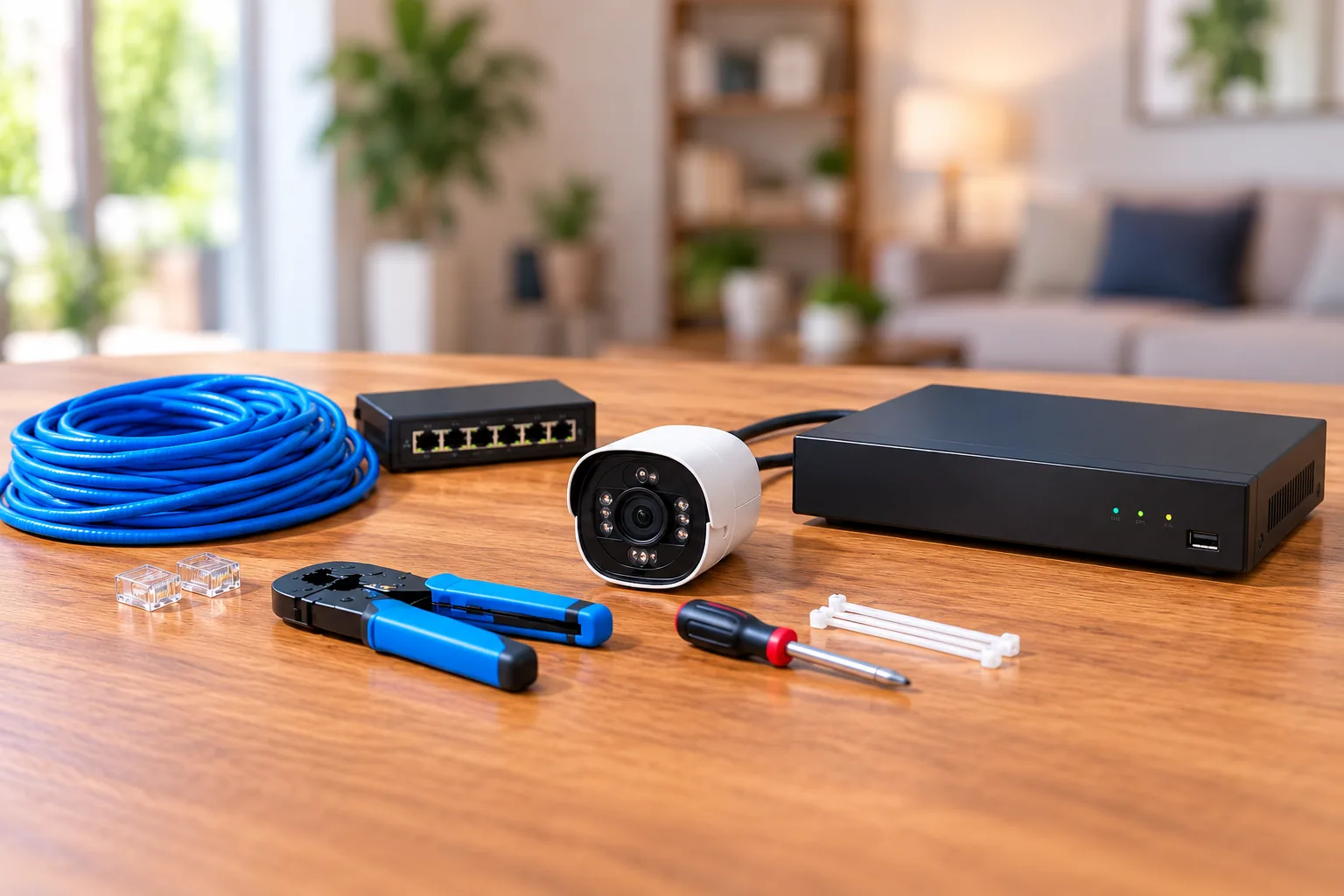
Reolink specifies eight-pin T-568B Ethernet cables and lists Cat5, Cat5e, Cat6 and Cat7 support. Its recommended maximum between the camera and network device is up to 80m for Cat5 and up to 100m for Cat5e and above. These are manufacturer limits for that connection, not a reason to extend every installation to the maximum. Reolink’s cable guidance supplies the table.
Compatible preterminated cables are a straightforward option for a homeowner who does not already have termination tools and experience. If making cables, use the manufacturer-compatible eight-pin termination and test the finished run; this guide does not supply a pin-color crimping tutorial. Confirm that the plug and cable dimensions fit the camera’s connector protection before purchasing a full set.
Keep the successful short cable available during installation. Change one variable at a time when diagnosing a failure rather than swapping the camera, port, cable and credentials together.
Step 4: Route cable and protect exterior connections
Run and label each cable, then test it with the intended camera before permanently finishing the route. Avoid pinching or damaging it and follow the cable and camera installation instructions for its environment. A camera’s weather-resistant body does not settle how its external connection must be protected.
Reolink’s detachable weatherproof cap has components that must go onto the Ethernet cable before the connection is made. After connecting, assemble and tighten the parts as directed. The integrated cap serves the unused RJ45 port; it should not be confused with the detachable assembly protecting a connected cable. Reolink’s weatherproof-cap guide explains the distinction.
Pause before closing a junction or mounting plate and inspect the completed protection. If the connector cannot be assembled correctly around your chosen cable, resolve the fit rather than leaving an exposed joint. Do not treat a cap or switch feature as a guarantee against lightning, flooding or unsuitable cable routing.
Step 5: Choose the recorder connection deliberately
NVR means network video recorder. Two common arrangements can behave differently in the app even when both record correctly.
| Reolink arrangement | Where the camera gets its address | What to expect |
|---|---|---|
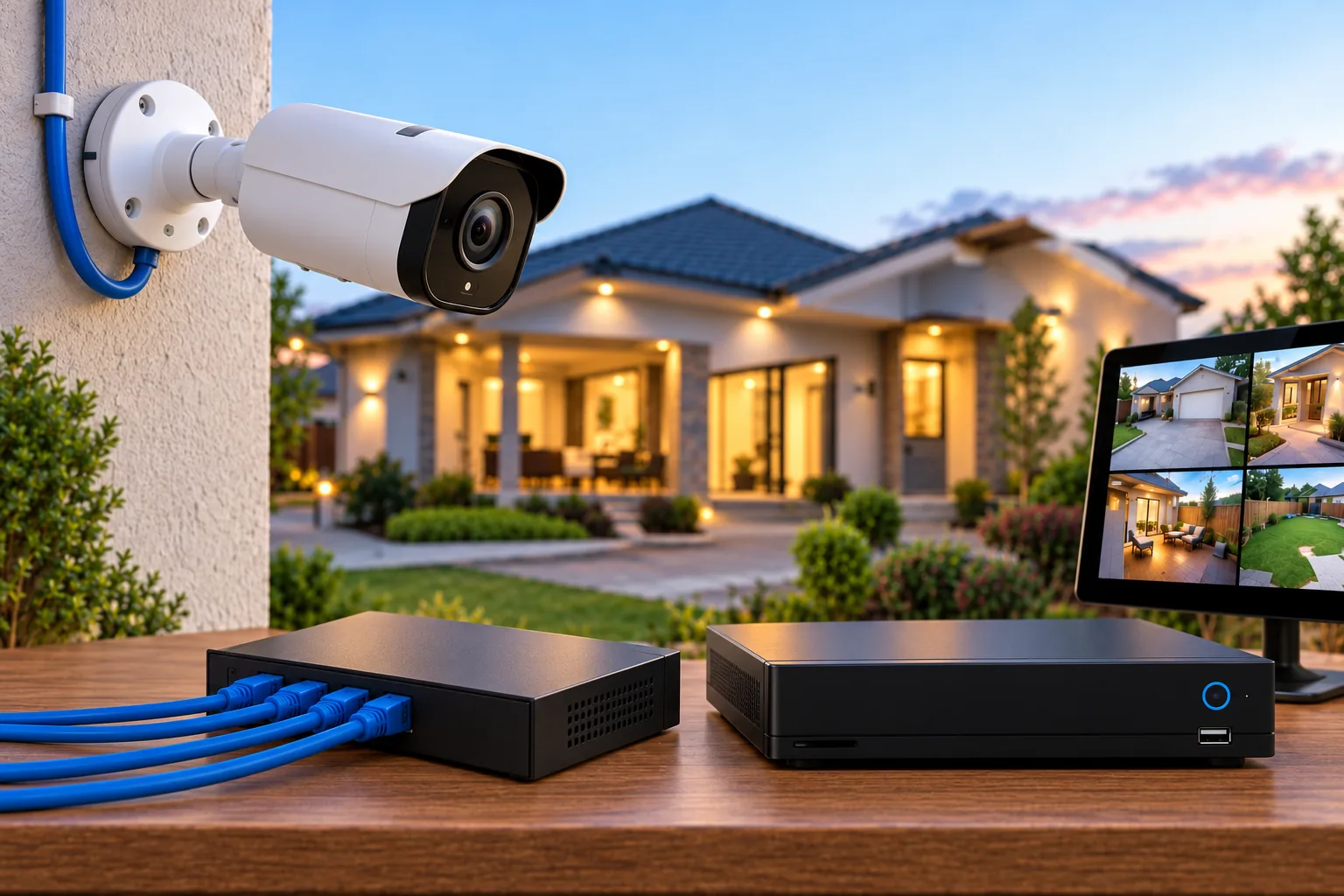
| Camera → external PoE switch; switch and NVR on the same router | Router | Add the camera to the NVR over the local network; separately accessible camera behavior depends on model |
| Camera → PoE port on RLN8-410 or RLN16-410 | NVR | Camera is accessed through the NVR rather than appearing as a separate app device in this documented arrangement |
Reolink’s topology guide documents these distinctions, including an exception for add-on cameras from NVR kits. Do not diagnose a direct-to-NVR camera as offline solely because it is missing from the standalone device list.
For the external-switch arrangement, connect the switch and NVR as the manufacturer specifies, and ensure the recorder can reach the cameras over the intended LAN. A camera receiving power has not yet proved that the recorder can authenticate to it or save its stream.
Step 6: Initialize passwords and add the cameras
For Reolink NVR setup in the app, connect the NVR’s LAN port to the router and keep the phone and NVR on the same network. Scan the NVR’s QR code or use its UID entry option, create the initial password and name the recorder. Reolink’s NVR initialization instructions document that sequence.
Store the credentials securely. If a camera was previously initialized as a standalone device, adding it to the NVR requires its existing camera password; the captured instructions direct that addition through a connected monitor. The recorder password and camera password are not automatically interchangeable.
Check every named channel against its physical camera position. Correct a wrong label now so that later playback of “side gate” does not show the garage. Confirm the local system first before troubleshooting optional remote access.
Step 7: Configure storage and prove recording
Check that the intended storage is present and available and that the camera supports the recording type you want. Set the applicable schedule and detection types, save the settings, then generate a simple test event and retrieve it in playback.
Reolink’s camera recording guide explicitly separates standalone-camera instructions from NVR recording instructions. Use the NVR’s own model and interface guide for its menu sequence rather than applying a standalone camera screen path to the recorder. The recording-schedule guidance supports checking storage, supported recording types and saved schedule settings.
Test after dark as well as during the day. Inspect both the live image and the saved event at the important target position. Google’s placement guidance recommends checking live and recorded views and warns that nearby surfaces can reflect infrared light, impairing the distant night view. That general inspection principle is useful here; its Nest-specific mounting heights should not be copied to a Reolink installation. Google’s placement guidance explains the reflection issue.
Troubleshoot by the failed stage
| Symptom | First distinction to check | Useful next check |
|---|---|---|
| Camera never starts | Compatible active PoE and required port standard | Known-good short cable and supported port |
| Works on short cable but fails on installed run | Cable length, termination and connection protection | Test or replace the permanent run |
| A camera drops when more are connected | Total budget as well as per-port power | Add documented maximum loads and check switch status |
| Live view exists but recorder cannot add it | Topology and camera credentials | Exact NVR addition procedure and existing camera password |
| Live view works but playback is absent | Storage, schedule and selected recording type | Save settings and retrieve a new test event |
| Day view is useful but night view is washed out | Reflections and nearby surfaces | Adjust position or aim and repeat recorded-night check |
Stop if a cable is damaged, a connection is wet, or the installation requires unsafe access. Persistent failures after isolated supported checks belong with manufacturer support or an installer; retain the model numbers, topology sketch and the stage that failed.
Final installation checklist
Label all cables and camera views, save the power calculation, confirm connector protection, secure credentials and verify every recording destination. Keep one saved daytime event and one nighttime event available as acceptance examples. Record the actual settings used so future changes can be compared against them.
Does every PoE camera need a separate switch?
No. A compatible PoE NVR may supply both power and network connectivity directly. An external switch is another supported arrangement, but its standard, power budget and connection to the recorder must fit the chosen cameras. Follow the system’s documented topology rather than adding equipment automatically.
Is live view enough to call installation complete?
No. Live view proves only part of the flow. You still need working storage, the desired recording schedule, successful authentication and retrievable footage. Finish installing PoE security cameras by finding and playing back actual day and night test events from every important view.