As an Amazon Associate we earn from qualifying purchases.
Choose event recording when clips of detected activity meet your needs, continuous recording when you need to review moments between alerts, and interval capture when a time-lapse view is sufficient. Then choose where that footage lives and how you will retrieve it. A camera that sends notifications does not necessarily save usable video.
For homeowners comparing wireless security cameras with recording, the useful specification is the complete combination of recording mode, storage, power and playback access. This guide compares documented behavior from TP-Link Tapo, Google Nest and Blink; it does not report hands-on testing or rank subscription prices.
Quick decision: Need the sequence before and after an incident? Prioritize supported continuous recording and sustained power. Need occasional activity clips with flexible placement? Evaluate event recording. Need a broad timeline between events on a compatible battery camera? Check exactly what its interval feature preserves.
On this page
- Four recording decisions
- Events and continuous video
- Interval capture
- Storage and recovery
- Retention
- Outages and retrieval
- Common questions
- Choose your recording requirement
Separate four recording decisions
“Wireless,” “local storage” and “24/7” answer different questions. Use this worksheet before comparing cameras:
| Decision | What to establish | Why it matters |
|---|---|---|
| Trigger | What starts an event: motion, a person or another supported detection? | Activity outside enabled event types may never become a saved clip |
| Saved cadence | Event clips, full continuous video or interval snapshots? | Determines what remains between alerts |
| Destination | Camera card, supported hub/recorder or cloud? | Determines where footage survives and how you retrieve it |
| Power | Battery or a supported connected power source? | Determines which recording modes the exact model can sustain |
Google distinguishes event clips from eligible cameras' continuous cloud history. Tapo separately documents detection and continuous schedules, local storage and interval capture. These are separate capabilities, so a storage label cannot establish recording cadence. Google video-history guidance, Tapo recording schedules.
For example, a camera can save motion clips locally while leaving no video between events. Another can record continuously to local storage without uploading that entire timeline. Buying more storage does not change the first camera into the second.
Event clips versus continuous video
Choose event recording for selected activity
Event recording preserves clips when enabled detection conditions are met. It is a practical starting point when your question is “Did someone arrive?” and reviewing a list of detected events is enough. Google's guide explains that when specific event types are selected, the camera saves those enabled events to its cloud history. Google event-history explanation.
The limitation is the selection process itself. An empty event list cannot establish that nothing happened. Check supported event types, detection settings and recording schedules before treating a missing clip as a camera failure. Do not assume a notification, live view and saved recording are interchangeable: confirm playback of an actual recorded event.
Choose continuous recording for the spaces between events
Continuous recording preserves video throughout configured recording periods. It suits a reader who wants to review an arbitrary time, follow a sequence or inspect what happened outside selected alerts. On supported Tapo devices, Continuous Recording and Detection Recording occupy separate schedule blocks; the camera does not automatically record continuously merely because motion detection is enabled. Tapo continuous-recording setup.
Check the whole week, including overnight periods. A camera scheduled for continuous recording during the day and detection recording at night has an intentional change in coverage. Finding a clip at noon proves neither the overnight schedule nor retention of yesterday's footage.
Power is model-specific. Google says Nest Cam (battery) needs a connected power source for continuous video history, while Nest Doorbell (battery) cannot provide that history even with optional wired installation. Tapo lists battery models including C420, C400 and D230 as exceptions to its conventional continuous-recording feature. Wiring or charging a battery product is therefore insufficient evidence that it supports the mode you want. Google power limitations, Tapo compatibility guidance.
Interval capture is a third option
Tapo's 24/7 Capture takes snapshots at a chosen interval and switches to normal frame-rate recording for detected events. Between events, the resulting footage plays as a time-lapse. That may help answer “When did the scene change?” but it is not equivalent to a full video timeline of everything that happened. Tapo 24/7 Capture guide.
Consider a hypothetical delivery: an interval view might show a clear doorway followed by a package, while a detected event supplies a normal video clip. If the event is not captured, snapshots cannot reconstruct every movement between them. This is a selection example, not a measured detection result.
The same guide says this feature requires compatible camera or hub local storage; Tapo Care does not store its interval footage. Hub support requires H200 firmware 1.6.5 or later, or H500 firmware 1.3.1 or later, together with a camera that supports the feature. Shorter intervals use more battery, and frequent wakeups from busy streets or moving trees can add drain. Tapo interval-storage and power requirements.
Choose interval capture when those missing moments are acceptable. If you need normal video of an arbitrary second, use a system documented to provide continuous recording instead.
Storage location determines the recovery workflow
Local storage: confirm the destination and export route
Local footage may be on a card inside the camera or on a separate compatible hub or recorder. That distinction matters if the camera is damaged or removed. Ask where the recording is actually written, rather than assuming every device described as a “hub” stores video.
Tapo's continuous-recording guide permits a compatible microSD card or supported Tapo Hub, subject to the camera and hardware version. Its general help page also describes card playback and downloads; downloading card footage requires the phone and camera on the same Wi-Fi network. Tapo local recording, Tapo playback and export.
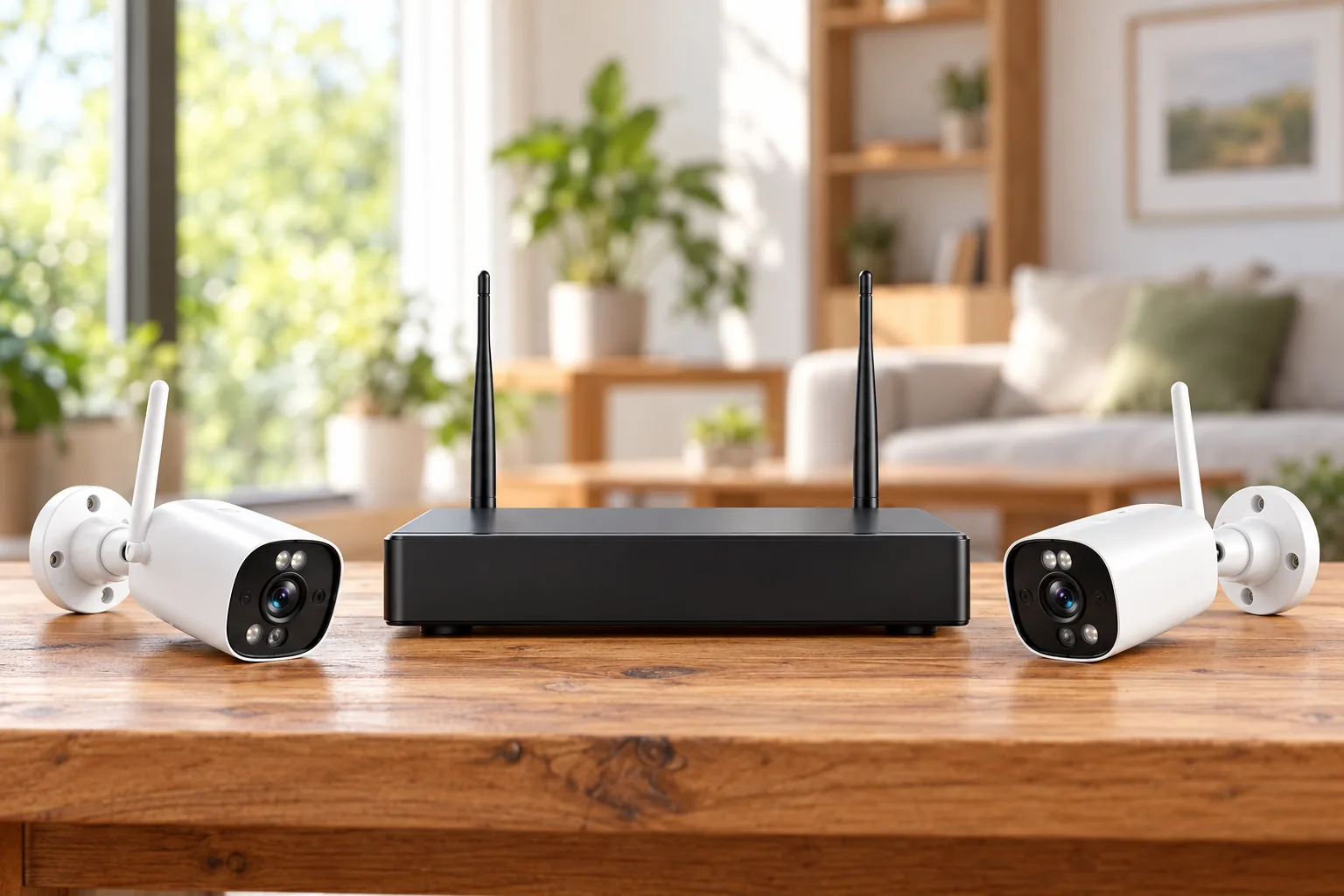
A separate wireless camera recorder changes where footage is kept, so confirm camera compatibility and the export workflow before building a system around one.
Cloud history: retention is a moving window
Cloud storage can place saved footage away from the camera, but history remains subject to the provider's retention rules. Google states that its video history is deleted on a rolling basis and that changing history subscriptions can remove or convert existing footage. Export anything important before a change. Google history and subscription changes.
That help page still uses Nest Aware tier names. Use its documented recording behavior as guidance, then verify the current plan offered to your exact device and account. This article does not treat older plan labels as a current price or entitlement table.
Compare security cameras without a subscription if avoiding recurring recording fees is part of your storage decision.
A daily backup is not immediate local recording
Blink Clip Backup, with an active subscription or trial, backs up cloud clips once every 24 hours to USB storage on Sync Module 2 or microSD storage on Sync Module XR. Backups are viewed on a computer, rather than directly in the Blink app. Sync Module Core does not support local storage or Clip Backup. Blink backup guidance.
Therefore, a backup workflow should not be chosen on the assumption that every new clip already exists locally. Check the latest successful backup and the devices included. Also distinguish subscription-backed Clip Backup from other Blink local-storage arrangements; the feature names describe different workflows.
Plan retention around when you notice an incident
A storage plan should preserve footage until you can review and export it. Start with a practical question: how long might it take you to discover a problem? A weekend away and a daily review routine imply different needs.
Tapo's loop recording overwrites the oldest card footage when storage fills. Its card guidance recommends High Endurance cards for repeated writing and says actual recording duration varies with settings and scene complexity. A capacity label alone is not a reliable promise of a particular number of days. Tapo overwrite behavior, Tapo card guidance.
Choose compatible microSD cards for security cameras after establishing the recording mode and the camera's supported capacity.
For an illustrative planning exercise, suppose you need to discover an incident after three days away and want two additional days to export it. That suggests a five-day retrieval target, with additional margin rather than an exact five-day assumption. Check the oldest playable footage under your real settings. This is a planning target, not a manufacturer retention claim.
Verify outages and retrieval separately
Tapo documents two distinct cases. Configured SD recording can continue after the camera loses its router connection, while app live view, playback and notifications are unavailable without Wi-Fi. If only internet service is lost and the local Wi-Fi still works, the phone and camera can access local playback on that network; cloud services and notifications need internet. Tapo connectivity guidance.
Do not generalize that behavior to every camera, hub or cloud platform. Before relying on a setup, verify:
- A known event appears in recorded playback with the expected time.
- Scheduled continuous periods contain video between events.
- The oldest playable footage meets your retrieval target.
- You can export a useful clip and open the saved file.
- Connectivity-loss behavior matches the exact model's documentation.
- Recording resumes after any safely performed interruption.
Do not interrupt essential equipment to perform a camera check. No recording-mode label establishes backup power; verify power arrangements separately. Also check privacy settings: Tapo Privacy Mode disables audio/video streaming and recording and stops event notifications. Tapo Privacy Mode.
Common recording questions
Does wireless mean battery-powered?
Do not infer the power source from that label. Check power and recording support separately. The Nest Cam battery example illustrates why: its supported connected-power configuration changes continuous-history eligibility, while optional wiring does not give Nest Doorbell (battery) the same capability.
Can a local card replace every cloud feature?
A card establishes a storage destination, not equivalence with every cloud feature. Check alerts, playback, export and recording mode individually. Tapo's local recording and Blink's daily cloud-clip backup demonstrate why two products with removable storage can still have very different retrieval workflows.
What should I check first if recordings have gaps?
Check whether the timeline uses detection recording, interval capture or continuous recording during that period. Then inspect the recording schedule, storage recognition, power and privacy settings. Tapo specifically identifies detection or unrecorded schedule blocks as possible explanations for gaps in its continuous-recording troubleshooting guidance. Tapo troubleshooting.
Make the recording requirement explicit
Write one sentence before buying: “I need this camera to preserve this kind of video, in this location, for this long, and let me export it this way.” Verify every part against the exact model and configuration. The right recording option is the one that preserves and retrieves the moments you need, including the limits between alerts.