As an Amazon Associate we earn from qualifying purchases.
Choose a security camera with a microphone for listening, audio recording for saved sound, and a speaker plus talk controls for two-way conversation. Sound alerts are another separate feature. A camera labeled “with audio” may provide only some of these functions, and two-way talk does not establish that a recording will contain both voices.
For readers comparing wireless security cameras with two-way audio, the first decision is what you want to do: listen live, preserve sound with video or speak to someone at the camera. This guide compares documented camera controls and practical checks. It does not report measured clarity, wind resistance or conversation delay.
Quick choice: Use a four-part audio checklist rather than one “audio supported” box. Then verify the exact camera, app and recorder path. A feature available in the manufacturer's app may disappear when the camera is connected to third-party recording software.
Contents
- Separate the audio functions
- Compare documented examples
- Check which voices are saved
- Verify recorder compatibility
- Set privacy controls
- Troubleshoot silent audio
- Use the acceptance checklist
- Common questions
What does “audio” actually include?
| Function | What it provides | What you still need to verify |
|---|---|---|
| Live listening | Nearby sound reaches the viewer | Microphone controls, app volume and who can listen |
| Recorded sound | Audio is saved with video | Recording toggle, saved track and export behavior |
| Sound alerts | A supported sound triggers a notification | Recognized sounds, settings and feature requirements |
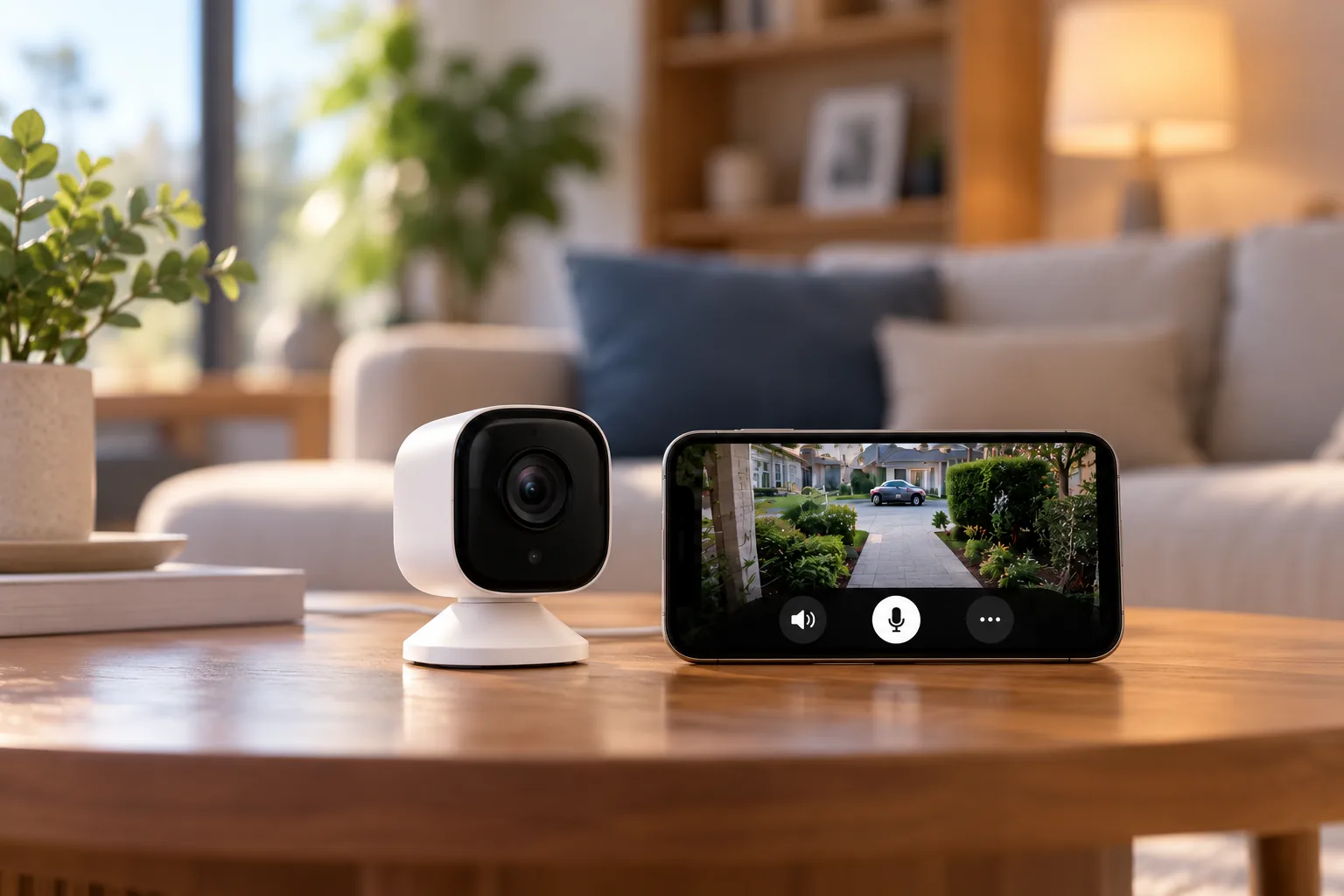
| Two-way talk | Your voice plays through a camera speaker and a reply reaches you | Speaker, phone microphone permission, conversation mode and recording behavior |
Google's Nest documentation distinguishes microphone-off from audio-recording-off and describes sound alerts separately. TP-Link also separates its Record Sound setting, microphone sensitivity and two-way-talk troubleshooting. These controls show why a microphone specification alone cannot answer every audio question. Google audio settings, TP-Link audio guide.
For example, someone who only needs to hear a visitor while checking live video may have no reason to retain household conversations. Someone who needs saved sound must verify the recording and exported file, even if live listening already works. Choose those requirements deliberately before enabling everything.
Compare documented audio examples
Full-duplex indoor conversation: Tapo C225
The Tapo C225 product page describes full-duplex two-way audio, a built-in microphone and speaker, and noise cancellation. Full-duplex describes a conversation mode that allows simultaneous speaking and listening; it does not establish how clearly a particular person will hear in your room or how much network delay you will encounter. Tapo C225 audio specifications.
Its other ownership requirements still matter. The documented C225 configuration is an indoor tabletop/ceiling camera using a 12V DC adapter and 2.4GHz Wi-Fi, with camera microSD storage up to 512GB or optional Tapo Care. Do not select it as an outdoor audio solution merely because its conversation controls fit. C225 installation and storage specifications.
Consider this model when an indoor permitted location, connected power and app-based conversation fit your needs. Check the exact hardware revision and current manual before purchase; no clarity or latency ranking is implied here.
Press-to-talk conversation: CasaCam VS802
The CasaCam GuardianCam Air VS802 manual describes holding the monitor's TALK button to speak through the camera, then releasing it to wait for a reply. That is a concrete example of taking turns rather than assuming every product labeled “two-way” works like a phone call. VS802 user manual.
This arrangement may suit a short instruction or a simple reply if users understand the button sequence. If your intended user expects free-flowing conversation, have them try the actual control before deciding. A familiar monitor can be useful, but the workflow is part of the buying decision.
Recorded audio without established talk-back: Reolink B800
The B800 camera specifications in Reolink's RLK8-800B4 kit list a built-in microphone and audio recording. They do not establish a speaker or two-way talk function. Treat it as a documented recording-audio example rather than assuming you can greet someone through it. RLK8-800B4/B800 specifications.
This distinction matters when replacing a camera or adding one to an existing recorder. Matching video resolution and a microphone is not enough if the actual job requires speaking to visitors.
| Need | Example to investigate | Main limitation |
|---|---|---|
| Indoor app conversation | Tapo C225 full-duplex audio | Documented feature does not prove room-specific clarity or delay |
| Monitor-based turn-taking | CasaCam VS802 TALK control | Hold to speak, release for reply |
| Sound accompanying video recordings | B800 microphone/audio recording | No speaker/talk-back capability established by the cited specifications |
These examples illustrate capabilities rather than a tested ranking. Choose the required workflow first, then verify all other power, location and recording requirements.
Check whether both sides of a conversation are saved
A successful conversation does not prove a complete conversation recording exists. TP-Link's audio troubleshooting guide states that its recordings capture ambient sound and the visitor's voice while filtering output from the camera's speaker. It says the owner's voice spoken through the Tapo app is therefore absent from the final recording. TP-Link recorded-audio explanation.
Imagine you give a delivery instruction through the app, and the visitor answers beside the camera. You may hear both sides live while the saved clip contains only the nearby voice. That is an illustration of the documented limitation, not a test result or a claim about every other brand.
If saving both voices is essential, require explicit documentation for the exact configuration and inspect an exported example before relying on it. Do not attempt to reconstruct missing audio from a speaker-volume setting later.
Security camera recording options also determine whether the relevant video period exists to carry that sound.
Verify audio through the recorder you intend to use
A manufacturer's app and a third-party recorder are different access paths. For Tapo cameras connected through ONVIF Profile S, TP-Link's guide says two-way audio is unavailable through that connection even when the camera supports it in the Tapo app. Tapo RTSP/ONVIF guidance.
If you plan to use a NAS, NVR or third-party client, check three things separately: live audio in that client, audio saved by that recorder, and talk-back from that client. Seeing a picture confirms only video. Hearing live sound confirms another function, but still does not establish talk-back or a usable exported track.
Write the intended route down as a chain: camera, connection protocol, recorder/client and viewing device. Ask support about that exact chain instead of asking whether “the camera supports audio.” Keep the manufacturer's app available for functions that the third-party connection does not provide, if that arrangement meets your needs.
Configure privacy with the right switch
Microphone-off stops collection differently from recording-off
Google says turning a Nest camera microphone off stops streamed and recorded audio. Turning audio recording off can leave sound available in live view, while removing it from saved video and disabling sound alerts. Microphones can be toggled individually per camera. Google microphone and recording controls.
The captured guide also says the microphone is off at initial setup. Check your actual settings rather than adopting a blanket assumption that every camera starts with a live microphone. If audio was not captured while the microphone was off, turning it on later cannot restore sound to that earlier history. Google setup and history limitations.
For Tapo, Record Sound controls whether audio is captured in recordings; its microphone sensitivity slider affects both live audio and recordings. Follow the exact model's documentation to establish the desired live-listening state as well. TP-Link sound settings.
A visual privacy feature does not answer the microphone question
C225 physically conceals its lens using a button. That establishes a video-privacy feature, but its product description alone is insufficient evidence that every microphone function stops with that lens position. Verify audio controls separately. C225 lens concealment.
The same principle applies when a camera's view excludes a sensitive area: sound may be a separate question. Discuss audio with household members or the people responsible for the premises. If applicable consent or privacy requirements are unclear, obtain qualified local guidance before enabling listening or recording. A sign, app setting or two-way button does not by itself establish legal permission.
Placement and setup affect whether conversation is usable
Choose indoor security cameras when the job is a permitted room conversation with suitable power and a compatible network.
For a visitor-facing position exposed to the weather, compare outdoor security cameras with suitable mounting, power and audio controls.
Evaluate the intended conversation spot, not just the camera's image. Can the visitor stand where the microphone and speaker serve the task? Is nearby noise likely to make the exchange difficult? These are questions to verify at the site; this guide has no measured pickup distance, wind score or delay figure.
Avoid using the phone immediately beside the camera when assessing conversation. TP-Link's troubleshooting guidance explains that its echo cancellation filters speaker output to prevent feedback. Assess the actual remote-use arrangement, with one person at the intended speaking position and another using the phone or monitor. TP-Link feedback and audio guidance.
Diagnose a silent camera in the right order
If you cannot hear the visitor
Check the phone's media volume and the camera microphone control first. In Tapo, the microphone sensitivity slider affects live listening and recordings; it is separate from the phone's playback volume. Inspect the microphone opening for dirt, debris or moisture, following the manufacturer's cleaning directions rather than inserting objects or improvising a repair. TP-Link listening troubleshooting.
Then check connectivity. TP-Link says weak networking can cause audio lag or loss and directs users to the camera's signal-strength/RSSI information. That is a troubleshooting lead, not a guarantee of a specific delay once signal improves. Retest the actual conversation after changing one condition at a time.
If the visitor cannot hear you
Check the phone microphone, the app's microphone permission, any connected Bluetooth headset and the camera's speaker volume. A headset may be taking the phone's audio input, while a denied permission can stop your voice from reaching the camera. TP-Link lists these as distinct causes to check before concluding that the camera speaker failed. TP-Link talk-back troubleshooting.
Confirm speaker-volume controls on the exact model. Google lists adjustable Talk and Listen speaker volume for specified Nest models, including Nest Cam (battery) and certain wired generations; it does not offer the same control on every Nest camera. Avoid instructions that assume one generation's menu applies to all. Google model-specific volume controls.
If saved playback is silent
First verify that recording sound was enabled for that period. TP-Link recommends downloading a recording and opening it in another player or on a computer to distinguish a genuinely missing audio track from a playback-interface or player-compatibility issue. TP-Link playback check.
If the file contains sound elsewhere, troubleshoot playback on the original device. If the track is absent, investigate capture and recording settings. Changing the current microphone setting does not establish that sound was captured previously.
Use an audio acceptance checklist
Before relying on audio, perform this proposed check with everyone's permission:
- Listen live from the intended viewing device.
- Speak through the camera and confirm the person nearby can hear.
- Follow the documented conversation mode: simultaneous or press-to-talk.
- Make a short recording with known nearby sound and review playback.
- Export it and open the file outside the original playback screen.
- Check whether the saved clip contains the particular voices you need.
- Repeat through the intended third-party recorder, if used.
- Disable audio using the relevant controls and verify the desired live and saved behavior.
Record what the setup actually does. These are verification steps, not results claimed by this article. Escalate persistent failures to the manufacturer with the exact camera revision, app, firmware, connection path and symptom.
Common audio-camera questions
Does two-way audio always mean simultaneous conversation?
No. Check the documented interaction. Tapo C225 is described as full-duplex, while the CasaCam VS802 monitor uses hold-to-speak and release-for-reply controls. Google's support guide also identifies turn-taking behavior for specified Nest generations. Do not infer one conversation mode across an entire brand.
Does muting the phone stop recording sound?
A phone playback control changes what you hear on that device. Check the camera's microphone and recording settings to establish what is captured. Tapo and Nest document separate controls, and Nest specifically permits live sound with audio recording disabled. Google audio behavior.
What is the most useful specification to ask for?
Ask for the exact combination you need: live listening, recorded audio, sound alerts and talk-back through your chosen app or recorder. Then confirm an exported clip and the privacy-off workflow. This makes the requirement concrete without relying on an ambiguous “audio supported” label.
Choose the audio workflow you can verify
Match microphone, recording, alerts and talk-back to the job, and keep the model and connection path attached to every claim. Verify live conversation, saved playback, export and disabling audio before relying on the setup. The right audio camera is the one that does the specific task while giving you understandable control over what is heard and kept.