As an Amazon Associate we earn from qualifying purchases.
For outdoor security cameras compatible with Google Home, start with the exact feature you need. Google Nest Cam (battery) uses the Google Home app directly. Tapo documents app and smart-display streaming for its linked cameras, with the outdoor C325WB providing a specific model to consider. Reolink E1 Outdoor Pro and Argus 4 Pro are conditional smart-display options: current official guidance conflicts with broader news reporting about phone-app viewing.
For a US household, a compatibility logo should begin the comparison. It does not establish that live video, recorded history, notifications, and two-way audio all work in the same place. This guide compares manufacturer documentation and integration instructions, rather than hands-on integration tests.
As an Amazon Associate I earn from qualifying purchases. We may earn a commission when you buy through links on this page.
Quick decision: Choose Nest Cam (battery) when using Google Home as the camera's main app is central to the purchase. Consider Tapo C325WB when a linked live feed plus Tapo's own recording workflow fits. Consider Reolink for documented Nest Hub/Chromecast viewing only after checking the exact camera or recorder configuration; do not buy it on an assurance of Google Home phone-app live view.
Contents
- Separate four meanings of compatibility
- Compare the documented workflows
- Choose power and recording before linking accounts
- Verify each requirement with this acceptance worksheet
- Common Google Home buying questions
- Buy for the workflow you can verify
Separate four meanings of compatibility
A camera can appear in Google Home without exposing every feature available in its own app. The first task is to divide your requirements into four independent jobs:
- Phone live view: Opening the live feed inside the Google Home phone app.
- Display live view: Asking a Nest Hub or Chromecast-enabled display to show the camera.
- Recorded history: Finding, playing, and retaining clips or a continuous timeline.
- Notifications and interaction: Receiving the alerts you need and using functions such as two-way audio.
These distinctions follow the manufacturers' separate integration and recording instructions. Tapo explicitly describes phone and display streaming; Reolink's official guide distinguishes supported display streaming from unsupported phone-app viewing. Neither linked live stream alone establishes equivalent recording or alert controls in Google Home. Tapo's Google streaming guide, Reolink's Google Home guide.
For example, imagine you want to glance at a backyard camera while cooking. A voice-started kitchen-display feed may satisfy that requirement even if recording stays in another app. Now imagine you want everyone to review overnight clips in Google Home. That is a different buying requirement, and a display-streaming claim does not answer it. Write down the actual action each household member needs to perform before comparing products.
Compare the documented workflows
| Option | Google viewing evidence | Recording decision | Main purchase qualification |
|---|---|---|---|
| Google Nest Cam (battery), US | Google Home app required | Included short event history; longer/continuous options have conditions | Check power accessories and the exact history plan |
| Tapo C325WB | Model lists Google Assistant; Tapo guide supports linked app/display viewing | microSD or Tapo Care in Tapo's system | Do not assume Google Home recording or notification parity |
| Reolink E1 Outdoor Pro | Product documents Nest Hub/Chromecast viewing | Powered local event, scheduled, or continuous recording | Official phone-app live-view conflict remains unresolved |
| Reolink Argus 4 Pro | Product lists Google Assistant; integration guide governs viewing | Battery/solar design with triggered recording | Verify exact integration and accept event-based capture |
The model documentation and integration guides support this matrix; it is not a claim that every listed feature has been tested together. Check the Nest product page, Tapo C325WB specification, E1 Outdoor Pro specification, and Argus 4 Pro specification for the exact devices.
Nest Cam (battery): the direct Google Home route
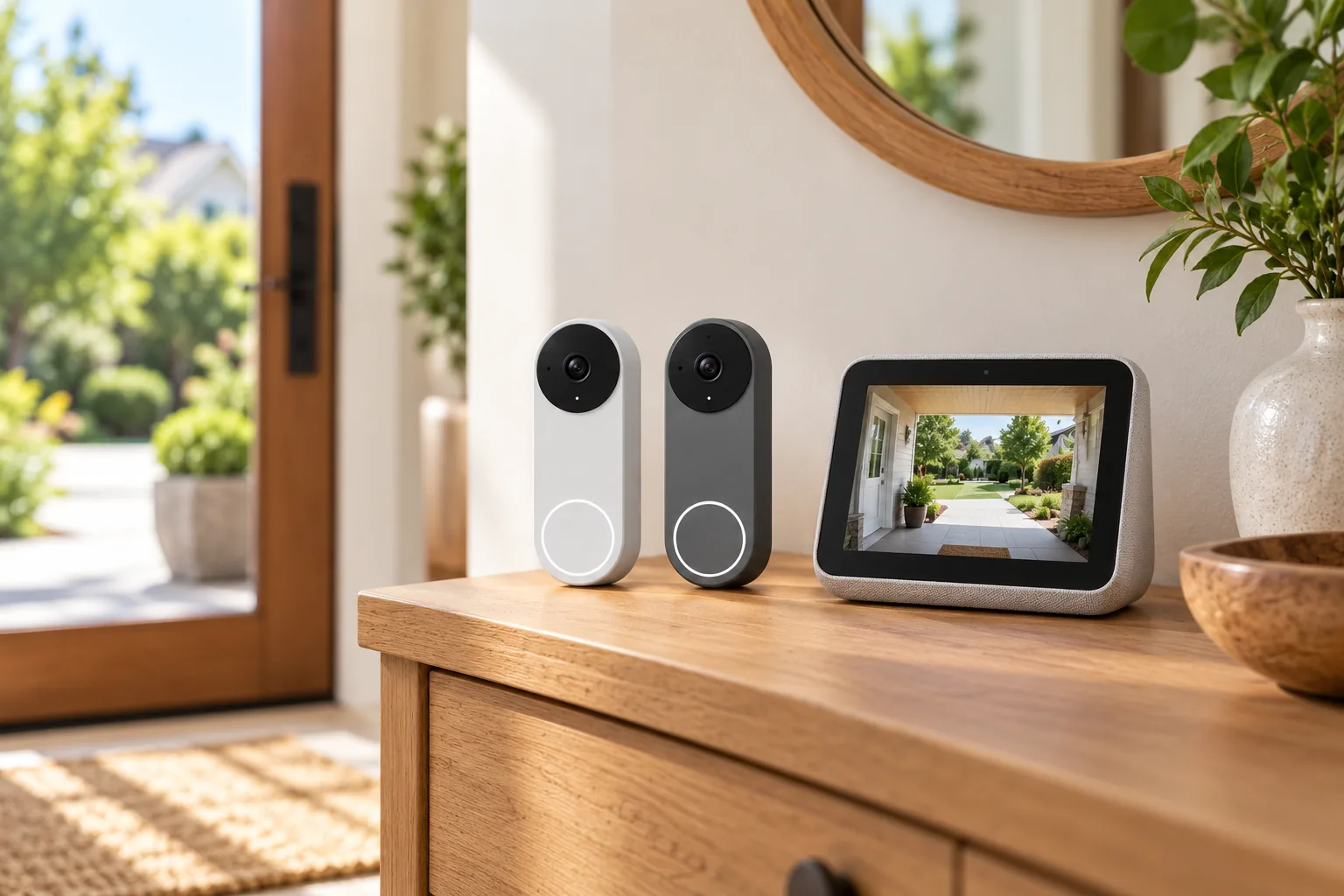
Nest Cam (battery) requires a Google Account and the Google Home app; its US specification says it is incompatible with the old Nest app and home.nest.com workflow. This is the clearest starting point among these choices when the household wants Google Home to be the main camera interface. Google documents built-in person, animal, and vehicle alerts and three hours of included event video history. Nest product and app requirements, Nest technical specifications.
Read “three hours of event history” carefully. It describes events within a recent time window, rather than a promise to store three hours of continuous footage. Longer event retention and continuous history depend on the appropriate Google Home Premium offering; continuous history also requires continuous wired power. Battery operation alone does not provide that continuous-history arrangement. Check the plan and regional terms that apply at checkout. Google's video-history requirements.
For outdoor installation, the included charging cable is indoor rated. Weatherproof 5 m and 10 m cables are separate options. The US camera supports 2.4/5 GHz Wi-Fi, and Google specifies at least 2 Mbps upload per camera for optimal performance. Treat outdoor power and internet service as part of the purchase, especially if you want longer recording rather than occasional live checks. Nest power and network specifications.
Nest security cameras deserve a model-specific comparison when expanding an existing household setup. The evidence for this battery model does not automatically transfer to a different generation. Search Amazon for Google Nest Cam battery.
Tapo C325WB: linked viewing with separate storage choices
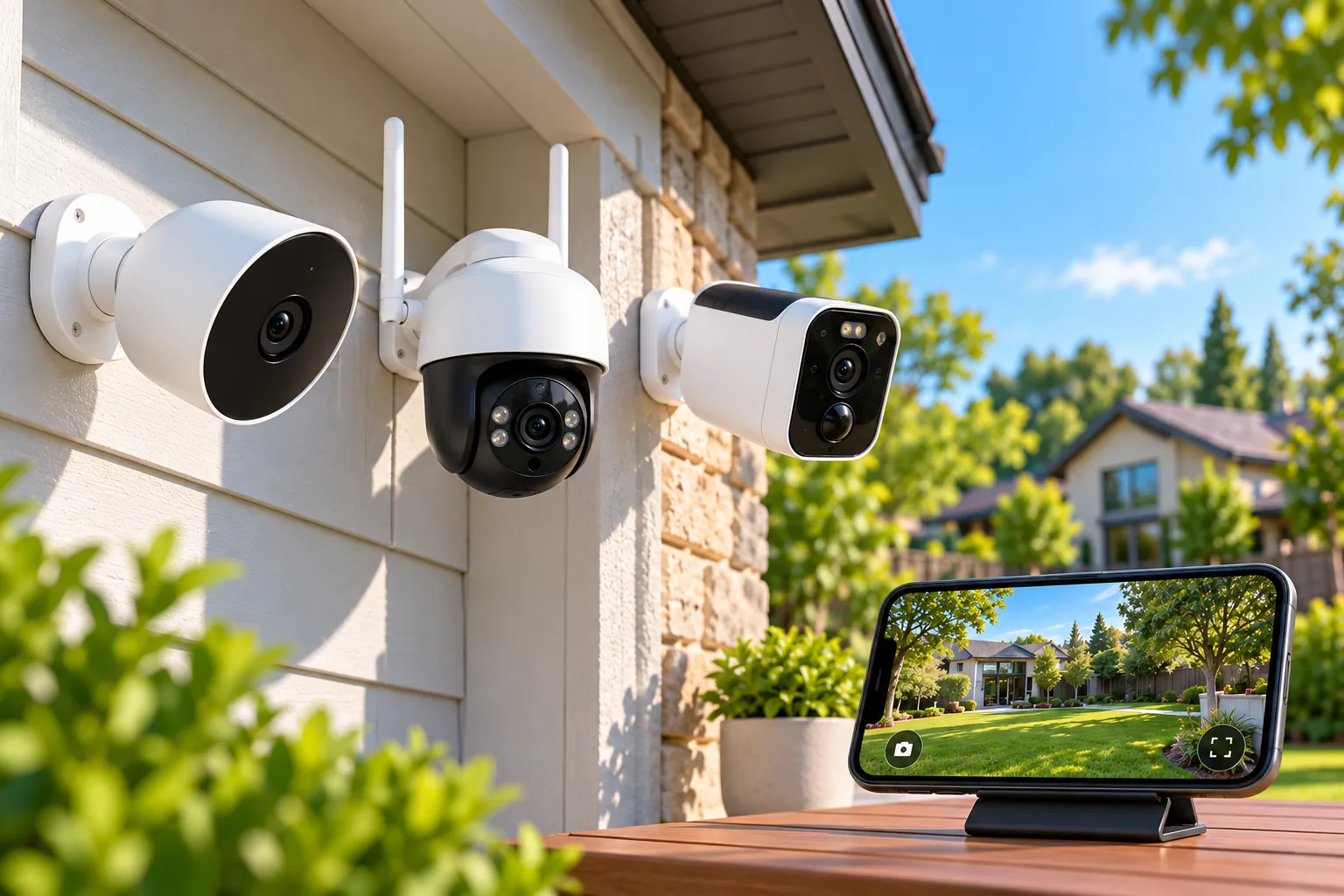
The US Tapo C325WB page lists Google Assistant integration, IP66 weather resistance, 2.4 GHz Wi-Fi, and Ethernet. It also lists a microSD slot supporting up to 512 GB and subscription-based Tapo Care cloud storage. That combination makes it relevant when you want an outdoor camera with local storage while keeping Google viewing as an additional interface. Tapo C325WB US specifications.
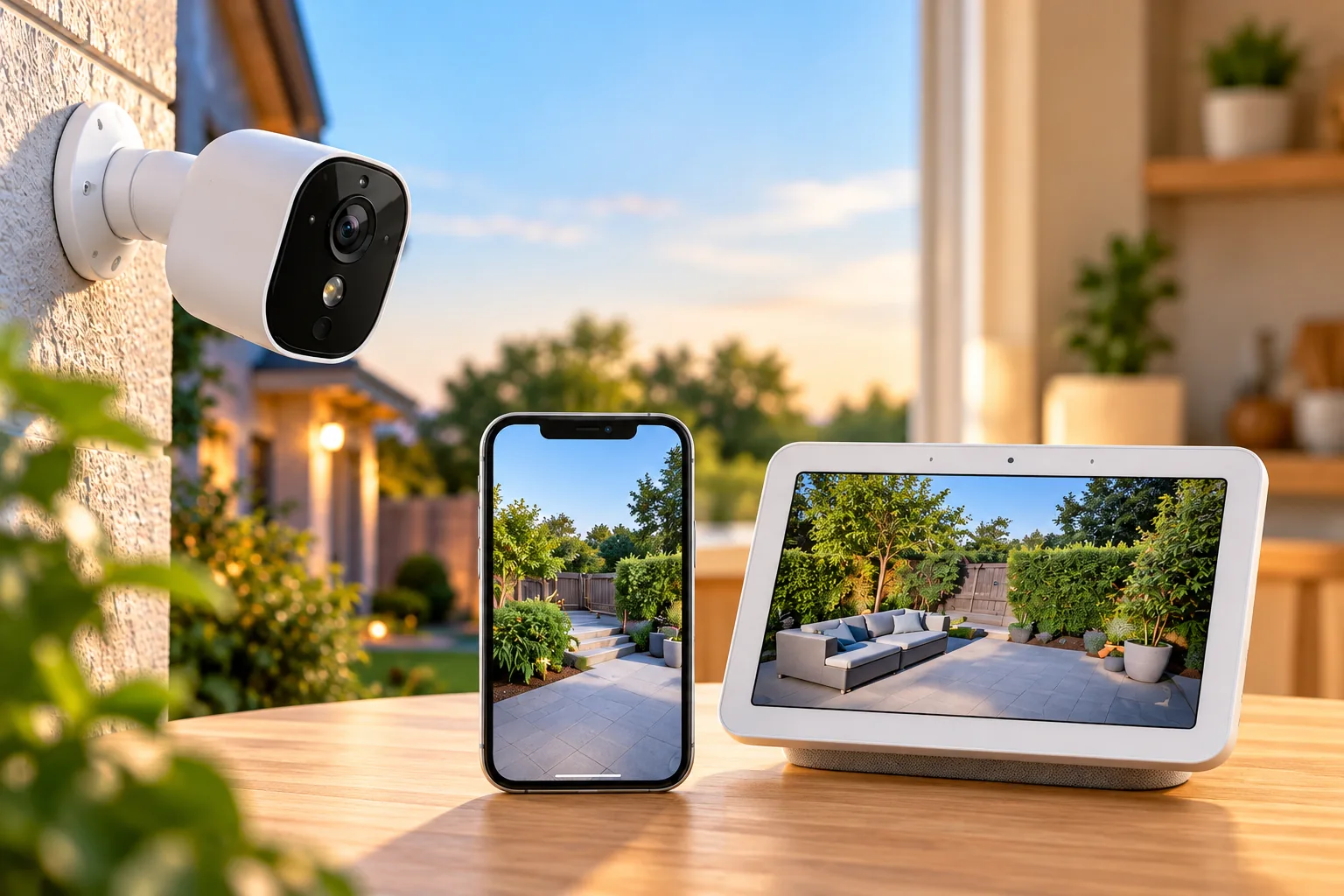
Tapo's Google-device guide, updated September 29, 2026, explicitly instructs users to tap the camera card in the Google Home app for live view. It also documents voice-started streaming on Nest Hub and Chromecast-enabled displays. Setup starts with an online Tapo camera, current Tapo and Google Home apps, and account linking. Tapo's integration instructions.
There is a meaningful viewing limit: Tapo says Google Assistant streaming is a cloud-to-cloud service and the display feed stops after ten minutes; you can request it again. That makes it suitable for a glance at a delivery or yard, while a permanently running display needs a different assessment. The timeout describes the Google viewing session, not how long footage is retained on a microSD card. Tapo's display-streaming limitation.
Keep notifications separate too. The C325WB page distinguishes basic system notifications from snapshot notifications that require Tapo Care. It does not prove those notifications appear with identical behavior inside Google Home. Its current US page lists 9 V DC or 802.3af/at PoE power; verify the purchased hardware revision before relying on PoE for an older unit. Tapo's notification and power specifications.
TP-Link outdoor cameras can be useful candidates when this separation between viewing and storage is acceptable. Search Amazon for Tapo C325WB.
Reolink: useful display support with a phone-app conflict
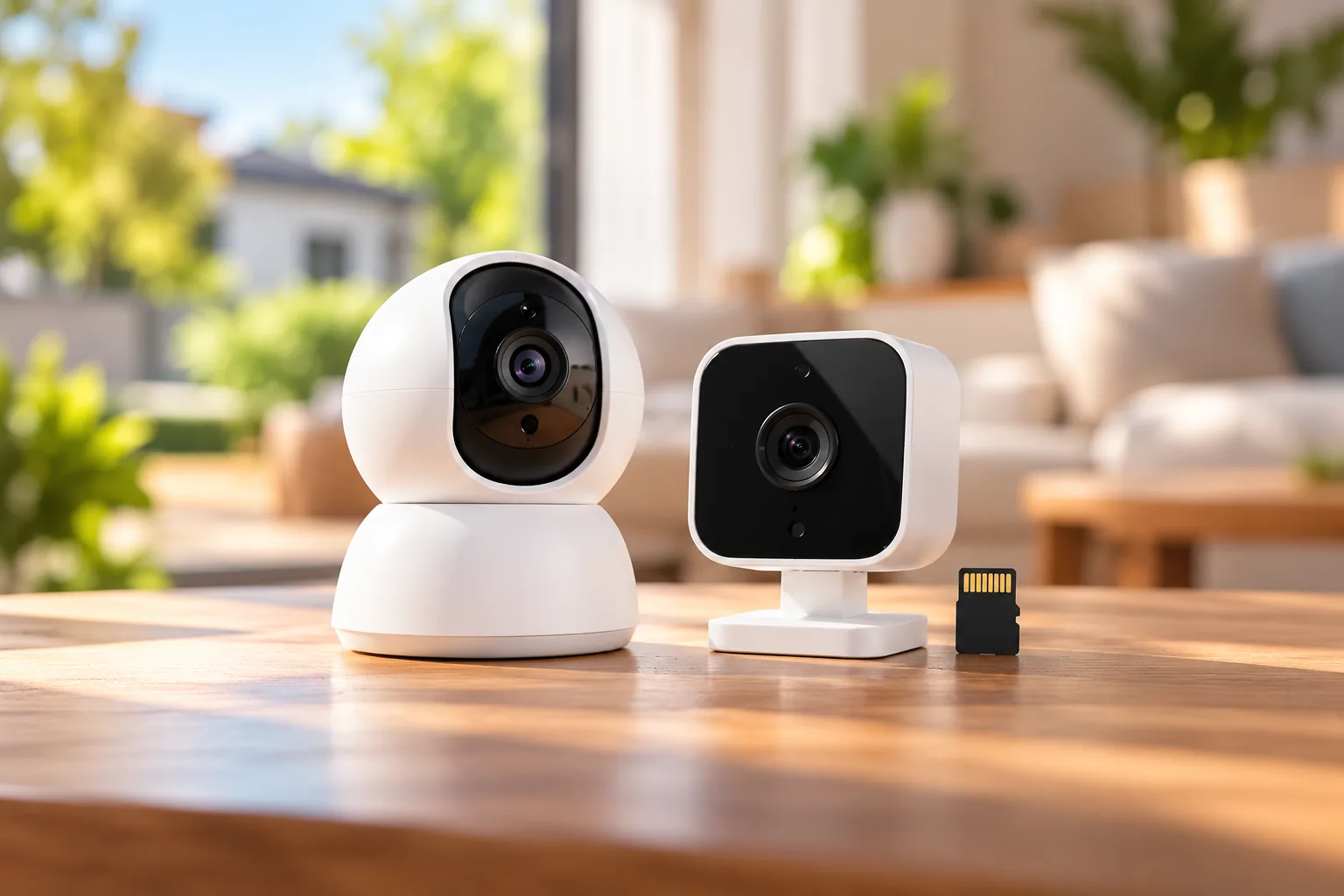
E1 Outdoor Pro's product page documents voice viewing on Nest Hub or Chromecast-enabled TVs. It combines 12 V DC/1 A power, dual-band Wi-Fi, 355° pan, 50° tilt, and 3× optical zoom. Its local recording supports motion-triggered, scheduled, and continuous modes, with storage options including microSD up to 512 GB, NVR, Home Hub, and FTP/NAS. Local recording does not require a monthly subscription. Reolink E1 Outdoor Pro documentation.
Argus 4 Pro is a different power and recording proposition: its product page lists battery/solar power, dual-band Wi-Fi 6, IP66, Google Assistant, and triggered recording. It should not inherit E1 Outdoor Pro's continuous modes. Choose between these models by the footage and power arrangement you need before judging their integration labels. Reolink Argus 4 Pro documentation.
The important uncertainty concerns phone-app live view. Reolink's captured official integration guide explicitly says this is unsupported in the Google Home app and directs users to a smart display or Chromecast. An August 6, 2026 news report describes broader third-party app viewing, including Reolink, while also discussing inconsistent historical behavior. Those statements conflict; broad brand news does not establish support for your exact device, account, or rollout. Reolink's official limitation, 9to5Google's update report.
If Google Home phone-app viewing is mandatory, exclude these Reolink choices until that exact workflow is confirmed for your configuration. If Nest Hub viewing is sufficient, the official documented route is relevant. Reolink also distinguishes standalone cameras, Home Hub connections, and NVR connections, including hardware and firmware requirements; recorder support cannot be inferred from a camera's standalone specification. Reolink integration compatibility guide.
Choose power and recording before linking accounts
A camera that shows a live picture can still fail your recording requirement. Decide whether you need event clips or a continuous timeline, where footage should be stored, and how long you need access. Security camera recording options should be evaluated independently of the app used to request a live feed.
A hypothetical household that checks the driveway only during deliveries may accept a battery camera and event-based recording. Another household that needs to inspect what happened between alerts should start with a documented continuous-recording configuration. Among the examples here, E1 Outdoor Pro documents that mode, while Nest Cam (battery) needs the appropriate wired-power and subscription combination. Argus 4 Pro documents triggered recording. E1 recording modes, Nest continuous-history requirements, Argus recording mode.
Plan safe outdoor power at the same time. A Wi-Fi connection removes a data cable only where the product supports that connection; it does not make a powered camera battery operated. Outdoor camera installation should follow the exact product's cable and mounting instructions. Keep indoor-rated chargers protected and use qualified help for electrical work beyond the product's normal plug-in setup.
Verify each requirement with this acceptance worksheet
Use this worksheet during setup, before permanent mounting or committing to a recording plan. Mark an item “not required” only when the household truly does not need it.
| Requirement | What to check | Record the result |
|---|---|---|
| Manufacturer app | Camera is online and can show live video | Model, app, firmware, account region |
| Google phone app | Camera card opens a usable feed, if documented | Works, unsupported, or unresolved |
| Google display | Correct camera appears on the intended display | Display name and session behavior |
| History | Required clip or timeline can be played in the intended app | Storage and plan used |
| Alerts | Expected event produces the required notification | Which app receives it |
| Audio | Needed interaction works in the intended interface | Exact supported action |
| Remote access | Required viewing works away from home Wi-Fi | Test with phone cellular data |
For Tapo, follow its account-linking guide after confirming the camera is online. For Reolink, the guide recommends app version 4.52 or later, account linking, and enabling Google Home for the applicable camera, hub, or NVR. Use a unique descriptive name such as “Backyard Camera” so the requested camera is unambiguous. Reolink documents preview limits that vary by Google display, including five-minute and twenty-minute cases. Tapo setup, Reolink setup and display limits.
If the manufacturer's app cannot reach the camera, solve power, connectivity, or account setup first. If that app works but a Google display does not, check the linked account, exact compatibility path, camera name, and display assignment. If live view works but history does not, inspect storage and subscription entitlements. Repeating account linking will not add a recording feature the product does not support.
Common Google Home buying questions
Does linking a camera include cloud recording?
No general rule follows from linking. Reolink explicitly says Google Home linking is independent of its cloud recording and needs no cloud subscription. Tapo and Nest have their own documented storage and history options. Confirm the exact recording destination and entitlement instead of treating a linked camera card as a storage plan.
Can I replace the manufacturer's app completely?
Do not assume so for a third-party camera. Its documentation may retain setup, storage, notifications, and other controls in the manufacturer's app even when Google can stream live video. Nest Cam (battery) is different because Google Home is its required camera app. Match the interface to each action on your worksheet.
Is a timed-out display feed a recording failure?
Not necessarily. Tapo documents a ten-minute Google streaming stop, and Reolink describes display-dependent preview limits. Check the recording directly in its intended storage/app workflow. A live-view session ending and a missing saved event are separate symptoms with different causes.
Buy for the workflow you can verify
For a Google Home-centered household, begin with Nest Cam (battery) and its exact history requirements. For linked viewing with separate recording controls, compare Tapo C325WB. Treat Reolink as a documented smart-display option while its phone-app conflict remains unresolved. Before purchase, write down the required app, display, alerts, storage, and power arrangement; then verify those same actions during setup. A completed worksheet is more useful than a compatibility logo alone.