As an Amazon Associate we earn from qualifying purchases.
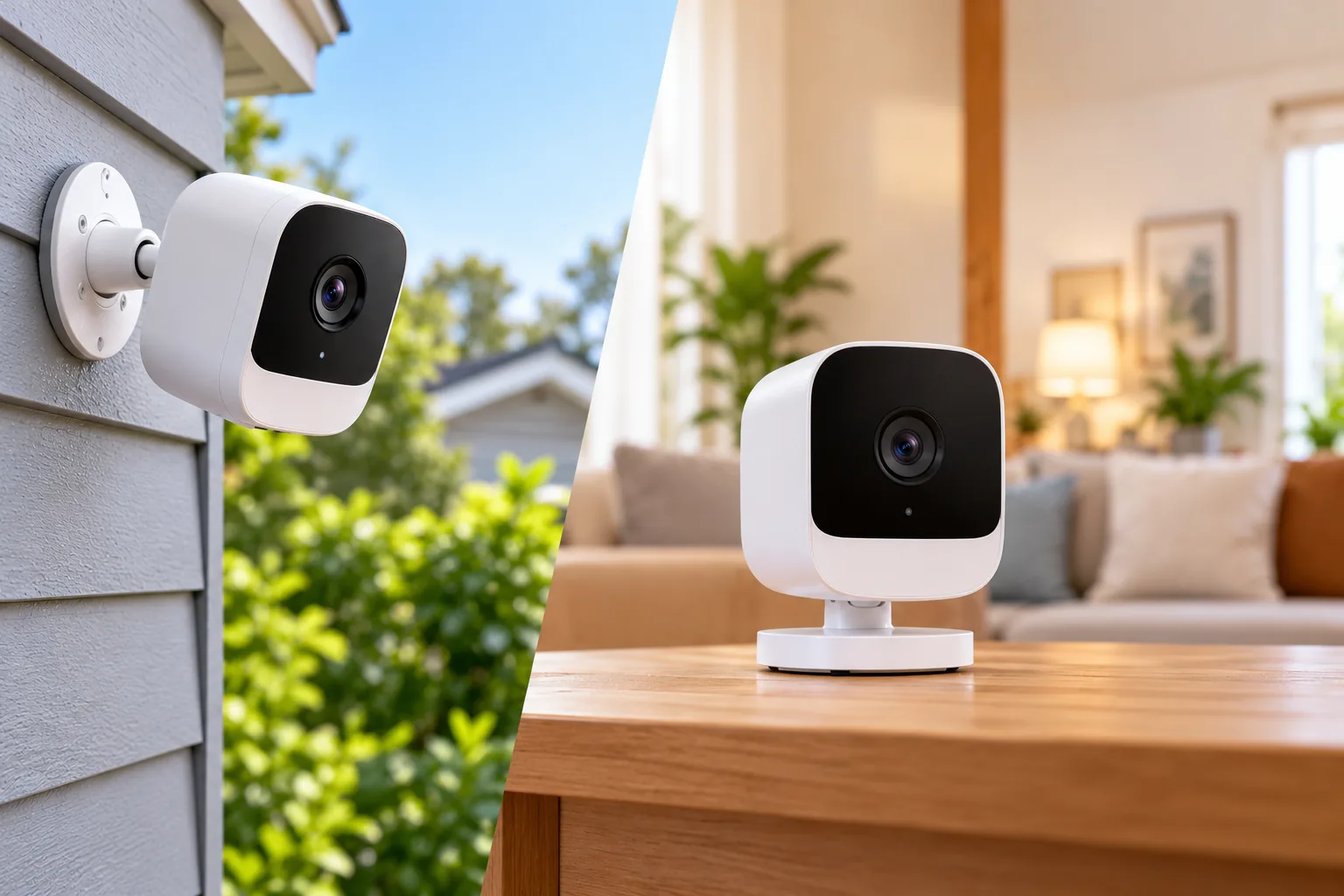
For Xfinity outdoor security cameras, start with the model: xCam2 is the indoor/outdoor camera; xCam3 is indoor-only. Then confirm that your account supports the correct app and recording service. A camera showing live video does not automatically provide saved footage of an earlier event. These are separate decisions, especially when adding a used camera or expanding an older Xfinity Home setup. Xfinity’s model identification guide establishes the model differences.
Quick decision: Choose an outdoor-capable model for an exterior location, plan a cable route to its supplied indoor power adapter, and confirm recording entitlement before buying. Existing owners should identify their hardware before replacing, moving, or resetting it.
This guide compares Xfinity’s documented camera features and support instructions. It covers camera ownership and setup requirements; it does not present hands-on image-quality tests or quote equipment and service prices.
In this guide:
- Identify your model
- Outdoor placement
- Account and app
- Cloud recording
- Capacity and data usage
- Activation checks
Which Xfinity camera do you have?
Check the model in the app before relying on a listing photograph. In the Xfinity app, open the camera thumbnail, select the gear icon, and choose About this Device. In the Xfinity Home app, open the thumbnail, select the three dots, and choose Technical Information. The rear label is another identification route when app access is unavailable. Xfinity’s identification instructions describe each path.
| Model | Documented use or pairing distinction | What that means for an owner |
|---|---|---|
| xCam3 | Indoor-only; pair with the Xfinity app | Do not move it outdoors, including under an eave |
| xCam2 | Indoor/outdoor; pair with Xfinity app or Xfinity Home app | Match the app to your service and plan the indoor adapter location |
| xCam1 | Requires an Xfinity Home touchscreen for pairing | Confirm access to that pairing path before resetting or acquiring one |
| iCam2 | Requires an Xfinity Home touchscreen for pairing | Treat it as a legacy system component rather than an interchangeable app-paired camera |
| iCam1 / iCam1000 | Xfinity Home; technician pairing | Ask Xfinity about your particular installation before changing hardware |
These distinctions come from the official identification matrix. Its listing of older cameras explains their documented pairing methods; it does not promise indefinite support or establish that a secondhand unit can be activated on your account. Source: Xfinity camera identification.
For xCam2 and xCam3, the matrix lists live video, 24/7 Video Recording capability, motion notifications, two-way audio, and camera area settings. It also lists rules, taking pictures, and manually recording video clips as unsupported. Recording capability still depends on the service being enabled. Do not mistake a capability checkmark for an included subscription.
There is also a distinction between starting a manual recording and downloading a clip from existing continuous history. The identification matrix excludes manual video recording for these models, while the recording FAQ allows eligible recorded clips to be downloaded. Those statements describe different actions, so choose the feature that actually answers your need.
What outdoor placement requires
The indoor/outdoor camera’s product page lists weather resistance, night vision, and DC 12V input. Wireless communication does not mean battery operation. The activation instructions require the supplied power adapter and an indoor outlet that is not controlled by a wall switch. For outdoor installation, the adapter still goes inside. Xfinity camera specifications and activation instructions support those requirements.
Sketch the route from the intended view to the indoor outlet before committing to a location. Include the mounting surface, wall passage, cable protection, and access to the adapter. A useful view of the driveway is only practical if the camera can receive power and connect reliably there. Follow the installation instructions for the exact hardware rather than substituting a generic power supply or assuming an exposed outdoor adapter is acceptable.
Outdoor camera placement should start with the activity you need to see and the practical route for power. For a porch, that may mean prioritizing the approach to the door over a wide view of the street. For a side entrance, consider whether nearby walls or vegetation will obstruct the view as people approach. These are planning considerations, not claims about tested detection distances.
Xfinity instructs owners to check Wi-Fi where the camera will sit, with at least 3 Mbps download and 2 Mbps upload. It suggests moving closer to the gateway or using its WiFi Extenders when appropriate. Test the location before permanent mounting; an indoor speed result near the router does not establish the connection quality at an exterior wall. Source: camera activation.
Do not treat weather resistance as a reason to put xCam3 outside. Outdoor capability belongs to the identified model, not to every camera sold under the Xfinity name.
Match the service to the app before purchase
Xfinity’s activation guidance says Shield Select replaces Smart Home for new sales, while existing Smart Home customers may keep their current service. Shield Select setup is managed in the Xfinity app. Existing Smart Home and Xfinity Home owners should follow the setup path that matches their service; xCam3 pairing uses the Xfinity app. Source: Xfinity activation guidance.
This makes an account-first purchase conversation more useful than asking only whether a camera is “compatible with Xfinity.” Identify your current service, the exact camera, the app used for activation, and whether recording is included or added separately. Have Xfinity confirm that combination before buying hardware from a third party.
There is a specific eligibility uncertainty to resolve if you use another internet provider. The activation guide includes networking advice for another provider, but the recording FAQ says the Xfinity app is available only to Xfinity Internet customers. Those pages do not establish universal eligibility for every account configuration. Ask Xfinity to confirm your provider, service, model, app access, and recording entitlement together before spending money. Activation guidance, recording FAQ.
For a used camera, also ask which activation procedure applies. A low purchase cost can be poor value if the device requires a touchscreen you do not have or a technician visit you have not arranged. Keep the model label and seller’s description available for that discussion, and seek a clear answer before the return period becomes relevant.
Live video and recording answer different questions
Live video answers “What is happening now?” Recorded history answers “What happened while I was away?” Xfinity says motion notifications can still be available without 24/7 Video Recording, but opening the notification leads to the live feed; there is no recording of the event that triggered it. Source: 24/7 Video Recording FAQ.
For example, assume a delivery arrives while your phone is unavailable. If you only have live viewing and check later, the notification does not itself preserve that delivery. If reviewing missed activity is the reason for installing a camera, confirm actual recording access instead of treating notifications as a substitute.
The FAQ says 24/7 Video Recording is included with Smart Home and Shield Select, while Xfinity Home Security customers can purchase it for a monthly charge. It stores continuous video in the cloud for up to seven days, where available, with a maximum of six cameras and video doorbells combined enabled at once. Source: recording service requirements and limits.
Security camera recording options should be compared by what remains available after a missed notification. For this Xfinity service, the documented retention window is finite. Download important eligible clips before they expire, rather than relying on the cloud timeline as a permanent archive. The available evidence does not establish an alternative local-storage option for these Xfinity cameras.
Work out camera capacity and internet usage
Use two separate counts: the devices you want installed, and the devices you want recording continuously. Xfinity allows you to choose which eligible cameras or doorbells record and switch between them. That gives some flexibility, but it does not raise the six-device recording maximum. Source: recording FAQ.
| Planning item | Example assumption | Result to check |
|---|---|---|
| Outdoor cameras recording | Three | Three recording slots |
| Indoor cameras recording | Two | Five slots used in total |
| Video doorbell recording | One | Six slots used; recording maximum reached |
| Additional recording camera | One more desired | Requires changing the plan for which devices record |
This is a hypothetical household, not a tested installation. It illustrates why counting only cameras can overlook a doorbell that uses the same allowance.
Continuous cloud uploads also count toward internet usage. Xfinity gives a typical-activity estimate of 100 GB per device per month, with actual use depending on motion such as people, vehicles, or moving leaves. At that published estimate, three recording devices would represent approximately 300 GB per month and six approximately 600 GB per month. These are arithmetic planning examples, not measured usage or a guaranteed allowance. Check your actual usage and the terms of your internet plan. Source: Xfinity data-usage explanation.
Activate first, then verify the useful features
Follow Xfinity’s current instructions for the identified camera. The activation guide calls for Bluetooth and Location Services on the phone, the supplied adapter, and pairing one camera at a time. It instructs users to connect the camera’s Ethernet cable to the adapter and plug that adapter into the indoor outlet. Source: activation procedure.
Before considering the job finished, verify these outcomes:
- The named camera opens the expected live view in the correct app.
- The view covers the intended approach without unnecessary neighboring or private areas.
- Recording is enabled for that device if your plan includes it and you need history.
- An earlier point in the timeline is available, rather than only the current feed.
- Motion notifications lead to the expected camera.
- Sound settings reflect your household’s choice.
Xfinity says camera sound, including one-way and two-way audio, is off until enabled. Decide deliberately whether you need listening and speaking features; a working image does not establish that audio is active. Source: recording and audio FAQ.
Security camera phone access is worth checking before leaving home, particularly when several household members expect to use the system. If the expected camera, setup card, or history is absent, resolve the account and device state with Xfinity before resetting older equipment or buying a replacement.
Questions to settle before ordering
Can xCam3 be used on a covered porch?
No. Xfinity identifies xCam3 as indoor-only and explicitly excludes outdoor installation. A roof over the porch does not change the model’s documented use. Identify the outdoor-capable camera and plan its required power arrangement instead. Source: model guide.
Does an Xfinity camera record without the recording service?
Do not assume so. Xfinity distinguishes live video from 24/7 Video Recording and says that, without the latter, a motion notification has no saved recording of its triggering event. Confirm the service attached to your account and the recording setting for each device. Source: recording FAQ.
What should an existing owner check first?
Record the camera model, service name, pairing method, and app currently in use. Then verify live viewing and recorded history separately. That establishes whether the problem is placement, activation, or recording entitlement and gives Xfinity specific information for support.
Your pre-purchase checklist
Write down the exact model, indoor or outdoor location, supplied adapter and indoor outlet route, service name, activation app, recording entitlement, total recording-device count, and expected monthly data use. Confirm any account eligibility uncertainty with Xfinity.
For Xfinity outdoor security cameras, the right starting point is an outdoor-capable model with a workable powered installation. The purchase becomes useful when the account, app, and recording arrangement also match what you expect to see later. Settle those details before ordering, then verify live video and saved history as separate outcomes.