As an Amazon Associate we earn from qualifying purchases.
Identify the generation before choosing a Logitech security camera. Circle View is a Wi-Fi-connected, plug-in camera built for Apple HomeKit and HomeKit Secure Video. Circle 2 is an older, discontinued product with a separate Circle app and Circle Safe service history. Similar names do not mean the cameras use the same recording account or app.
For households researching Logitech wireless security cameras, Circle View makes sense to consider when Apple Home is already the intended viewing platform and its activity-recording workflow fits the job. Verify the home hub, iCloud+ recording entitlement and indoor power-supply location before buying. This guide compares documented requirements rather than claiming hands-on reliability tests, and it covers security cameras rather than Logitech webcams.
As an Amazon Associate, we earn from qualifying purchases. We may earn a commission when you buy through links on this page.
Quick take: Circle View combines Wi-Fi data with wired power and an Apple Home workflow. An older Circle 2 listing needs separate service and condition checks; it is not a current new-purchase recommendation here.
Contents
- Circle View versus Circle 2
- Apple household fit
- Wi-Fi and power routing
- Picture specifications
- Live view and recorded history
- Privacy and access
- Existing Circle 2 checks
- Ownership checklist
- Common questions
Circle View and Circle 2 belong to different generations
| Question | Circle View | Circle 2 |
|---|---|---|
| Product status in Logitech documentation | Identified on Logitech's US security-camera product page | End-of-life page says it is no longer available |
| Main ecosystem | Apple HomeKit, with HomeKit Secure Video support | Separate Logitech Circle mobile/web ecosystem described on its legacy page |
| Recording service to investigate | Apple HomeKit Secure Video with iCloud+ | Circle Safe resources for existing owners |
| Power decision established here | Plug-in power; included supply must stay indoors | Verify the exact legacy variant and its documentation |
| Appropriate next step | Check household Apple setup and installation fit | Check exact hardware and actual account/service operation |
Logitech's Circle View product page and Circle 2 end-of-life page establish the generation distinction. The latter identifies Circle View as the replacement and describes it as exclusively built for Apple HomeKit. Replacement branding does not imply that an old subscription, accessories or app settings transfer automatically.
For a current purchase decision, start with the exact Circle View camera label and its documentation. For equipment already installed, read the label before looking up support: searching only for “Logitech Circle camera” can put instructions from the other generation in front of you.
Does Circle View fit your household?
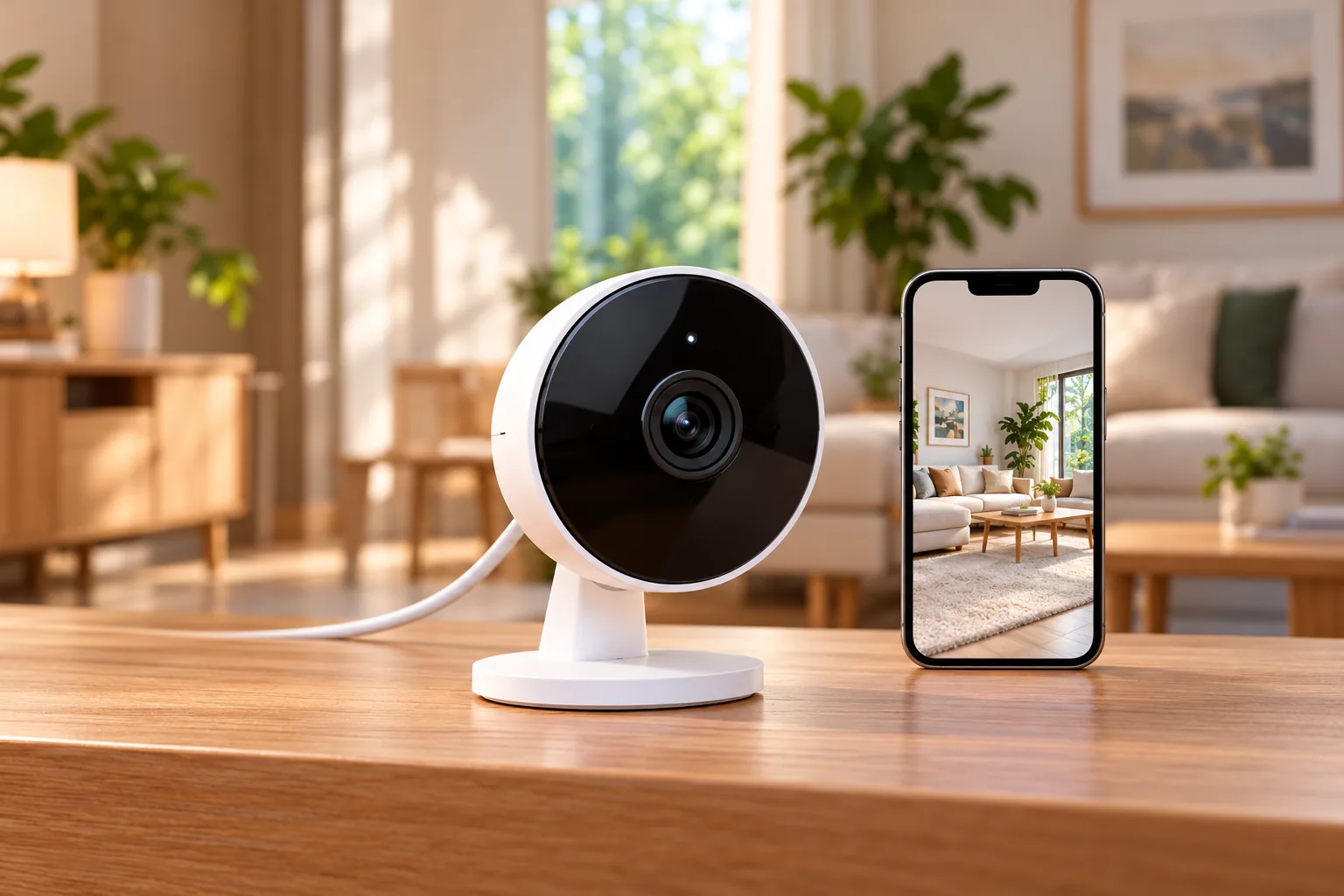
Circle View is an Apple Home camera, not a way to add an interchangeable camera to any existing recorder or app. Logitech describes setup through Add Accessory in the Home app on a supported iPhone or iPad, using the camera's unique setup code. Its product page is the starting point for that workflow.
This is a strong compatibility filter. If the people who need everyday access do not use the required Apple environment, resolve that before comparing picture specifications. Do not infer Android, Google Home or standalone NVR support from the fact that the camera connects over Wi-Fi. Network connectivity and application compatibility answer different questions.
For an illustrative two-camera household, assume an owner wants one camera at an entrance and another indoors. The buying decision includes the cameras, a suitable HomeKit Secure Video home hub if recording is needed, the appropriate iCloud+ entitlement, and permitted access for other household members. Buying the cameras first and deciding how everyone will view them later leaves a central requirement unresolved.
Security camera phone access should be planned around the people who need it. List who needs live viewing, who needs recordings, and who will manage settings. Then confirm that Apple Home's access choices fit those roles rather than sharing one person's account informally.
Wi-Fi connectivity still requires a power route
Circle View uses 2.4 GHz Wi-Fi according to its manufacturer setup guide, available in its FCC filing. It has a power cable; wireless networking does not make it a battery camera. Plan both the radio connection and the route to the included power supply.
Logitech describes the camera body as weatherproof and allows shelf or wall placement. Its power instructions are more restrictive: the supply is for indoor use only, must not be installed outdoors, and should be the supply included with the product. The setup guide says to use an indoor outlet and not to use or attempt to repair a damaged supply. These restrictions remain relevant even when the camera body itself is outdoors.
For a hypothetical porch installation, begin by locating an appropriate indoor power outlet and a permitted route to the camera position. If that route cannot be achieved safely under the supplied instructions, choose another position or a different camera arrangement. Putting an indoor-only power supply into an improvised outdoor enclosure is not a substitute for following the manufacturer instructions.
Before permanent mounting, power the camera at the intended location and check the actual connection and view. Keep access for inspecting the cable and supply. If new electrical work is required, use qualified help; if drilling is needed, check for hidden services and follow the mounting instructions.
Wireless camera installation begins with power and signal requirements at the final position. A successful setup beside the router does not, by itself, validate the outside location where you want to mount the camera.
Know what the camera's picture specifications mean
Logitech documents Circle View as a 1080p camera with a 180-degree diagonal field of view and infrared night vision up to 15 feet. Those are manufacturer specifications, not measured results from this guide. The Circle View introduction supplies those hardware details, while the current product page continues to describe its broad view and privacy controls.
Diagonal field of view is not a horizontal measurement and does not establish how much detail a face will occupy at a particular distance. Use the broad-view specification to decide what to test, then check the subject at the position that matters. For an entry, evaluate someone standing where a visitor normally waits, rather than judging the picture only from an empty-room overview.
Likewise, the stated night-vision distance does not guarantee identification at that distance. Review a saved clip under the normal night lighting, including any porch lamp or nearby bright source. If your decision depends on fine detail farther away, establish that requirement before assuming the specification covers it.
Separate live viewing from recorded history
Apple's Home camera guide distinguishes compatible-camera live streams and notifications from the additional HomeKit Secure Video features. For Secure Video, a home hub—Apple TV 4K or HomePod—privately analyzes and encrypts footage before it is uploaded to iCloud.
Recording requires iCloud+. Apple describes access to the last 10 days of activity, with the following camera allowances:
| iCloud+ plan size | HomeKit Secure Video camera allowance |
|---|---|
| 50 GB | One camera |
| 200 GB | Up to five cameras |
| 2 TB, 6 TB or 12 TB | Unlimited cameras |
Apple also says the video does not count against the iCloud storage limit. The plan sizes are entitlement categories, not a promise that camera video consumes that many gigabytes of the account. This guide does not quote current subscription prices.
For the hypothetical two-camera household, the 50 GB allowance is insufficient for recording both cameras under that tier. Check a plan supporting the required camera count and confirm the suitable hub before purchase. An unlimited camera allowance also should not be read as a performance guarantee for an arbitrary home installation.
Treat the documented history as recorded activity clips. Do not assume this camera and service arrangement supplies an uninterrupted, continuously recorded timeline. If you need to review any minute regardless of a detected event, establish a documented recording solution for that requirement before choosing the system.
Security camera recording options should match the incident you expect to retrieve. A useful setup check is to generate an ordinary activity event, find it in the Home timeline, play it back, and confirm that the authorized person can access it.
Configure privacy, access and notifications deliberately
Circle View provides two physical privacy actions. Logitech says tilting it down shields the view, while the rear button disables both audio and video. Choose the control that matches your intention; blocking the view and disabling audio/video are different actions. These functions are documented on the Circle View product page.
Apple Home allows different recording settings when home and away. Its guide gives the example of stopping indoor streaming and recording while home but continuing outdoor coverage. Discuss that arrangement with household members, then verify the selected modes rather than assuming that an indoor camera behaves the same way all day.
Apple also provides camera access settings for individual people under Home Settings. Inspect each person's allowed access and test it using that person's device. This helps distinguish a camera problem from an access-setting problem when someone can see live video but cannot use the expected recorded history.
Notifications can cover activity, status changes or an offline camera. HomeKit Secure Video offers additional filtering by time, occupancy, recording events and specific motion categories such as people, animals, vehicles and packages. Start with the events you actually need to know about, then review whether the settings produce useful notifications in that scene. Apple's camera guide documents the choices.
Activity Zones need another distinction. Apple says they are available when recording is triggered by specific motion and that they do not affect motion-detection automations. If you draw a walkway zone to focus camera notifications, do not assume an unrelated automation now follows the same boundary. Check each intended behavior separately.
What an existing Circle 2 owner should verify
Logitech's Circle 2 legacy page says it will continue supporting cameras, the Circle mobile/web ecosystem and Circle Safe subscriptions, with regional user-experience variation. That is a published support statement, not evidence of a successful login, new-account activation or a guaranteed future end date. This guide has not operationally tested those services.
If you already own Circle 2, identify the exact variant, confirm access through the applicable Circle service and check recorded footage before changing anything. If considering used equipment, ask the seller for the exact model and what is included, then verify present activation and service requirements directly with Logitech. Do not rely on a legacy resource page alone as proof that a secondhand camera will meet your needs.
Circle 2's separate service history also does not establish Circle View compatibility with Android or the Circle app. Keep generation-specific instructions attached to the equipment label throughout setup and troubleshooting.
A final ownership checklist
Before choosing Circle View, answer these questions:
- Is Apple Home the intended everyday viewing platform for everyone who needs access?
- Do you have a suitable Apple TV 4K or HomePod hub and the required iCloud+ camera allowance if recording is needed?
- Does activity-based history meet your retrieval requirement?
- Can the included supply stay indoors with a suitable cable route to the camera?
- Does 2.4 GHz Wi-Fi work at the intended position?
- Can the recorded view show the required subject in normal daytime and nighttime conditions?
- Have you agreed on home/away recording settings, physical privacy use and each person's access?
Common questions about Logitech security cameras
Is Circle View cordless?
No. It uses Wi-Fi for data but requires wired power. Logitech's setup instructions specify the included supply, an indoor outlet and an indoor-only location for the supply. Plan the power route even if the weatherproof camera body will be outside.
Can I use Circle View as a replacement inside the Circle 2 app?
Do not assume that. Logitech describes Circle View as exclusively built for Apple HomeKit, while its Circle 2 legacy page describes a separate Circle mobile/web and Circle Safe ecosystem. Identify the camera generation and follow that generation's documented setup.
What should I compare before buying?
For Circle View, compare the whole household workflow: Apple devices, home hub, recording allowance, clip history and power placement. If those fit, you can search Amazon for Logitech Circle View security cameras. Verify the exact camera and included supply with the seller; a search result does not confirm stock, price or support duration.