As an Amazon Associate we earn from qualifying purchases.
Choose Reolink wireless security cameras by their power source and recording requirements first, then match the exact camera to a recorder's hardware and firmware. A plug-in Wi-Fi camera can suit continuous recording near an outlet; a compatible battery camera can suit a location where running power is impractical. Neither the Reolink name nor an NVR model number alone proves the combination will work.
This guide is for US homeowners building or expanding a Reolink system. It compares documented compatibility and specifications, rather than hands-on image-quality tests. Doorbells and replacement accessories need their own compatibility checks.
As an Amazon Associate, we earn from qualifying purchases. We may earn a commission when you buy through links on this page.
Start here: identify power, choose the recording duty, and verify the exact camera–recorder pairing before ordering. Keep three capacity questions separate: available channels, available power and available storage.
On this page
- Power and network
- E1 Outdoor Pro
- Battery cameras
- NVR hardware
- Channels, power and storage
- Home Hub
- Before checkout
Choose the camera's power and network together
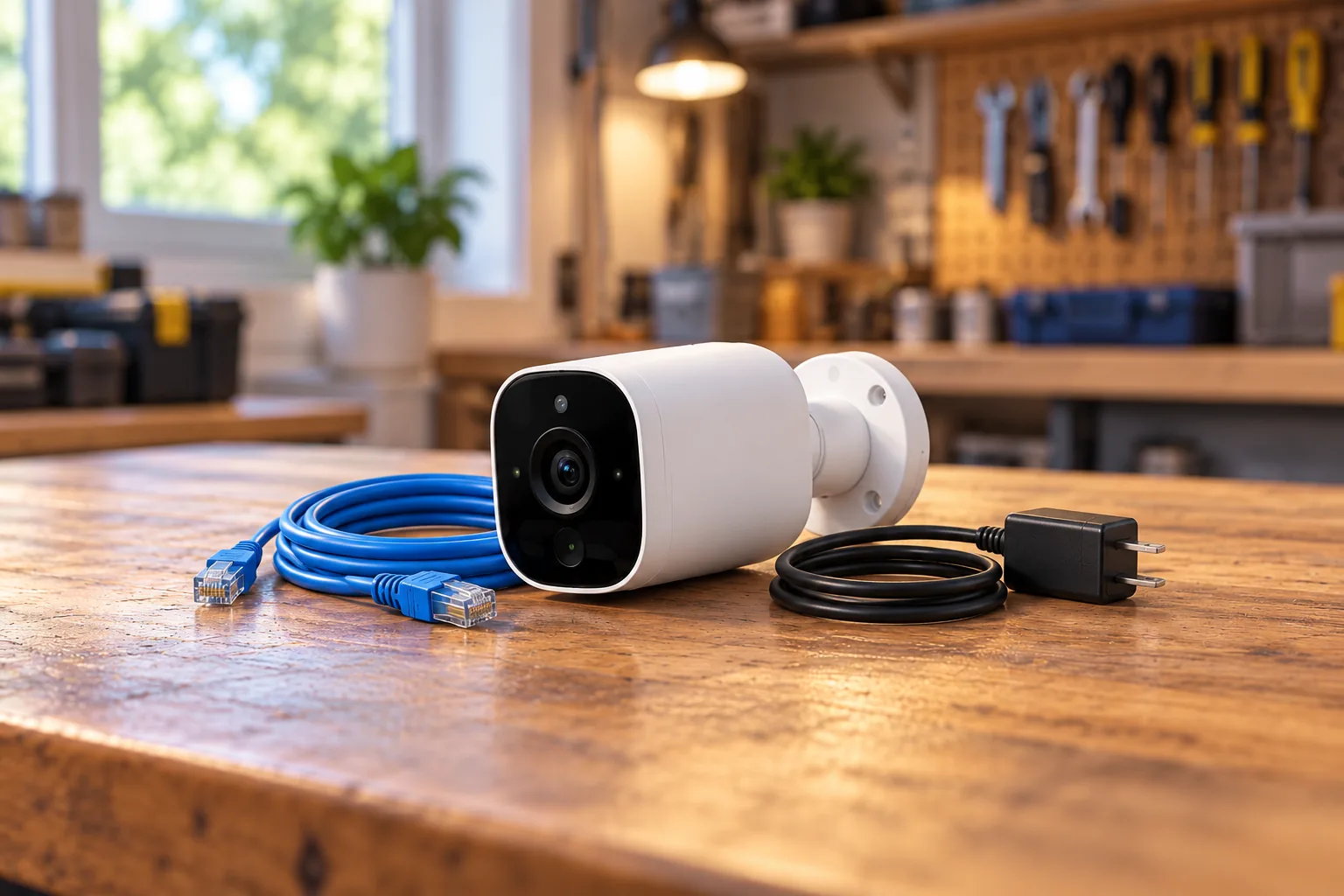
“Wireless” describes a network connection, but it does not tell you how a camera receives power. Reolink's E1 Outdoor Pro, for example, uses Wi-Fi yet specifies a DC 12V, 1A supply. Its Ethernet socket provides another network option; that socket does not establish Power over Ethernet support. Power over Ethernet, or PoE, supplies power and data over a compatible Ethernet connection. Reolink E1 Outdoor Pro specifications
Use the following starting points to narrow the system, then check the exact compatibility rules below.
| Your installation | Starting point | Check before choosing |
|---|---|---|
| Outlet near the camera; continuous coverage wanted | Plug-in Wi-Fi camera such as E1 Outdoor Pro | Power routing, Wi-Fi at the mount and selected recording destination |
| Power cable impractical | Compatible battery Wi-Fi camera | Exact hardware, recording behavior and Hub/NVR support |
| Ethernet can reach the camera | PoE camera with compatible recorder or power equipment | Camera compatibility, total power budget and cable route |
| Cellular camera already owned | Treat its connection path separately | Home Hub does not support 4G cameras |
The 4G boundary comes from Reolink's Home Hub compatibility guide. Do not buy a Hub to consolidate a cellular camera simply because both products use the same app ecosystem. Home Hub compatibility
For exterior coverage, the placement of outdoor security cameras should come before choosing a zoom or pan feature. Write down the entrance or approach you need to see, the available mounting surface and the practical power route. A camera with attractive specifications still needs a feasible installation.
E1 Outdoor Pro: a plug-in Wi-Fi option for continuous recording
The E1 Outdoor Pro is a useful reference point when you have power near an exterior mounting location and want a Wi-Fi camera with documented continuous recording. Reolink lists motion-triggered, scheduled and 24/7 recording, plus support for a microSD card up to 512GB. Those are camera specifications; recording behavior after adding it to a particular Hub or NVR must be checked separately. E1 Outdoor Pro recording specifications
Its listed video resolution is 3840 × 2160 at 20 frames per second. The camera offers 3× optical zoom, 355° pan and 50° tilt, with 2.4GHz and 5GHz Wi-Fi. These features make it worth considering when you want to adjust framing rather than accept one fixed view, but they are not evidence that moving subjects or distant details will meet your needs in every scene. E1 Outdoor Pro specifications
A pan-and-tilt mechanism also calls for a clear distinction between where a camera can point and what it records at one moment. If your decision depends on simultaneous views of two approaches, describe that requirement before relying on the ability to rotate a camera. Use the intended framing to decide whether one viewpoint is enough.
For the installation environment, Reolink lists IP65 protection and an operating range of 14°F to 131°F, or −10°C to 55°C. Check the actual location against those specifications and follow the installation instructions for the power supply and cable connections. The camera's rating should not be treated as a blanket rating for every exposed connection. E1 Outdoor Pro environmental specifications
The same documentation lists RTSP, RTMP and ONVIF, protocols relevant to third-party video software. Their presence is a starting point for checking an integration, not proof that every function will transfer to every recorder or application. If you want to compare offers after confirming fit, search Amazon for Reolink E1 Outdoor Pro.
Battery cameras: check the destination before buying
A battery camera should be selected with its recording destination in mind. Reolink's Home Hub table lists the Argus 4 series, including Argus 4 and Argus 4 Pro, as factory-supported without a compatibility firmware upgrade. Other battery families have hardware-specific entries, including models that require upgrades and older versions that are unsupported. Home Hub camera compatibility table
That makes an Argus 4/Home Hub combination a documented compatibility path to investigate for a location without convenient power. It does not establish battery runtime, image quality or continuous-recording capability. Those questions cannot be answered from a compatibility entry alone.
Keep the Home Hub table separate from the NVR table. For example, the NVR hardware guide lists Argus 4 and Argus 4 Pro with specific camera hardware and an upgrade requirement. A camera being factory-supported by Home Hub does not mean it needs no preparation for an NVR. Reolink NVR hardware and battery-camera compatibility
If continuous recording is essential, ask specifically whether the camera itself supports it in your proposed configuration. Reolink documents continuous recording for supported battery cameras on compatible NVR hardware, but keeps the condition attached to the camera model. Adding a recorder does not turn every battery camera into a continuous recorder. NVR recording limitations
Your NVR's hardware version matters as much as its name
An NVR is a network video recorder: the central device that receives and stores video from compatible network cameras. For Reolink expansion, record its complete identity before comparing cameras. The model RLN8-410 has been used across hardware versions with substantially different limits.
| RLN8-410 hardware | Documented compatibility boundary | What it means for expansion |
|---|---|---|
| H3MB02 | Up to 5MP wired-powered cameras, excluding Duo and TrackMix; no battery cameras | Keep existing equipment within its documented limits; a new camera may require another recorder |
| N7MB01 | Up to 16MP wired-powered cameras; some battery cameras from firmware v3.5.0.321_24060733 | Verify the battery camera and its firmware as well as the NVR |
These are exact examples from Reolink's hardware guide, not interchangeable specifications for everything sold as RLN8-410. The older H3MB02 example is relevant to owners checking an installed system. Reolink NVR hardware versions
For RLN8-410 hardware N7MB01 and RLN16-410 hardware N6MB01 running firmware v3.6 or later, Reolink provides a Supported Devices list on the NVR's connected monitor. Open Add Device and the help control beside “How to Add Camera to NVR,” or find Supported Devices under Settings → Home. Use that list to check the actual system in front of you. How to find supported devices
Before upgrading, match firmware to the hardware version. Reolink says firmware is not interchangeable between hardware versions. If the seller cannot identify a used recorder's hardware, you cannot reliably approve an expansion from its front-panel name alone. Hardware and firmware guidance
Count channels, ports, power and storage separately
A physical port is a connection socket. A channel is a software video position on the recorder. Reolink explains that physical ports are fixed, while some channel counts can expand through firmware. Its capacity table lists RLN8-410 N7MB01 with eight physical camera ports and twelve channels, supporting eight wired cameras plus four compatible battery Wi-Fi cameras, or twelve compatible battery Wi-Fi cameras. Reolink NVR capacity guide
Consider a planning example with eight wired cameras already connected and a proposal for four battery cameras. That matches a listed N7MB01 capacity pattern, assuming every camera is supported and the required firmware is installed. It does not prove that a different eight-port recorder supports the same arrangement. The hardware check comes before the arithmetic.
Channel use can also depend on the camera generation. The first-generation Duo PoE and Duo WiFi require two NVR channels each. Do not count one physical camera as one channel without checking the model. Separately, high-power PoE cameras can reduce the number powered directly by an NVR because the total power budget is fixed; cable losses also matter. Special camera and PoE capacity notes
For storage planning, define your desired retention period and recording schedule before selecting capacity. Compare security camera recording options if you are still deciding between continuous history and event clips. A large nominal channel count does not tell you how many days of the recording you want will remain available.
Home Hub changes management and network requirements
Home Hub can be a simpler consolidation route, but check both camera eligibility and total capacity. Reolink lists eight cameras total for the standard Home Hub at default bitrate. Home Hub Pro capacity varies with its hardware version, so “Pro” is not enough information for planning a larger system. Home Hub capacity and compatibility
For plug-in Wi-Fi and PoE cameras, Reolink's compatibility guide includes a UID requirement and exclusions. The listed exceptions include Lumus hardware IPC_325C7, E1 Zoom hardware IPC_515SD6, add-on cameras without a UID and refurbished units whose shipped hardware cannot be guaranteed. Check those details before buying a secondhand camera or moving an existing installation. Home Hub exceptions
In normal use, Home Hub connects to the router by Ethernet and cameras must share its local network. Reolink also documents offline recording through the same router without internet, or through the Hub's access point. Those offline configurations do not provide remote access. Home Hub network FAQ
Once added, cameras are managed through the Hub rather than individually. They cannot be added to Home Hub and a Reolink NVR simultaneously. Plan a migration around that boundary instead of expecting both devices to manage the same camera in parallel. Also recheck recording schedules after moving cameras; the FAQ describes schedule changes on Hub enrollment, so do not assume a standalone schedule carries over unchanged. Home Hub management and recording FAQ
Compatibility questions before checkout
Can a battery Reolink camera work with third-party software?
Standalone Reolink battery cameras lack RTSP, RTMP and ONVIF support. Reolink documents third-party protocol access through compatible Home Hub integration and advises updating the Hub. Verify the camera's Hub compatibility first, then the intended software and features. Battery-camera protocol guidance
Does local storage settle subscription costs?
Local recording is one part of the ownership decision. Review security cameras without subscription by the features you need: recording, playback, remote viewing and any optional services. This guide does not establish current cloud terms or promise that every Reolink service is included with every configuration.
What should I write down before ordering?
Use this short compatibility worksheet for each planned camera:
- Camera model, hardware version and required firmware.
- Power source and network connection at the actual mount.
- Required recording schedule and destination.
- Recorder model, hardware version and installed firmware.
- Supported Devices result or matching compatibility-table entry.
- Channels, power and storage remaining after the addition.
- Playback, export and remote-access checks to complete before permanent mounting.
Choose Reolink wireless security cameras by following that worksheet in order. Start with a feasible power route and recording requirement, verify the exact recorder pairing, and check one camera on a temporary setup before committing to the full installation.